
Microsoft Copilot can help a legal team draft, summarize, and find information faster. It can also surface a client file to the wrong person if the firm’s permissions are loose. A good setup handles both sides. This guide gives a small or mid-size firm a practical order of work: license, prepare the data, configure Copilot, run a pilot, and then expand.
First, the current names
Microsoft renamed its Copilot products several times. In August 2026, the Microsoft 365 Copilot app became the Microsoft Copilot app. You will still see older names in contracts, invoices, and some admin screens. This guide uses these terms:
- Microsoft Copilot (licensed). The paid add-on. It can use your work data in Outlook, Teams, SharePoint, OneDrive, and the Office apps, within the permissions each user already has.
- Microsoft Copilot Chat. The chat experience that comes with eligible Microsoft 365 subscriptions. Without the add-on, it works with web content and the files a user opens or uploads, under enterprise data protection.
- Microsoft Copilot Business. The add-on for organizations with up to 300 users on Microsoft 365 Business Basic, Business Standard, or Business Premium. It has the same Copilot capabilities and requires an annual commitment.
Microsoft 365 E7 includes Copilot. For E3 and E5, Copilot is an add-on. Confirm eligibility in the Microsoft Product Terms before you buy, because licensing terms change.
Step 1: Confirm the prerequisites
- Eligible base license for every user who will get Copilot. Device-based licensing for Microsoft 365 Apps for enterprise does not qualify.
- Work accounts in Microsoft Entra ID. Personal Microsoft accounts cannot use the firm’s Copilot.
- Exchange Online mailboxes for users who need Copilot with email, calendar, and meetings.
- The right admin role. Microsoft provides an AI Administrator role for Copilot settings. Use it in place of Global Administrator for daily Copilot administration.
Tip: Microsoft provides a Copilot service plan diagnostic tool. Run it for a pilot user who cannot see Copilot before you open a support ticket.
Step 2: Fix oversharing before anyone uses Copilot
Copilot shows a user only the content that the user can already open. It does not change permissions. That is the good news and the risk. If a closed matter site is open to “Everyone except external users,” Copilot can find it for every person in the firm.
The Copilot license includes SharePoint Advanced Management (SAM). Use it as follows:
- Run the data access governance reports. In the SharePoint admin center, go to Reports > Data access governance. Start with the site permissions report and the sharing links report. Look for “Anyone” links, organization-wide access, and sites with no owner.
- Tighten the sharing defaults. Go to Policies > Sharing. By default, SharePoint uses the most permissive option. Set link defaults that match your client confidentiality obligations.
- Restrict high-risk sites while you clean up. For a site that must stay open to its members but must not appear in Copilot results, turn on Restricted Content Discovery. Go to Sites > Active sites, select the site, open the Settings tab, and set Restrict content discovery to On. Site permissions do not change, and the setting can take time to take effect on large sites.
- Limit access by group where you must. Restricted Access Control limits a site to a Microsoft Entra security group or a Microsoft 365 group. People outside the group cannot open the site, even with an old link.
- Label sensitive content. Microsoft Purview sensitivity labels and a Data Loss Prevention (DLP) policy for Copilot can stop Copilot from summarizing labeled files and emails.
An ethical screen that exists only as a memo is invisible to Copilot. If the firm must keep a team away from a matter, enforce the screen with permissions or Purview information barriers before you license that team.
Step 3: Assign licenses to a pilot group
Create a Microsoft Entra security group for the pilot, for example Copilot-Pilot, with five to fifteen people. Include at least one partner, one associate, one paralegal, and one person from operations. Assign the Copilot license to the group. Group-based licensing makes later expansion a membership change instead of a per-user task.
To assign one user manually, go to the Microsoft 365 admin center, select Users > Active users, select the user, and then select Manage product licenses.
Step 4: Configure Copilot settings
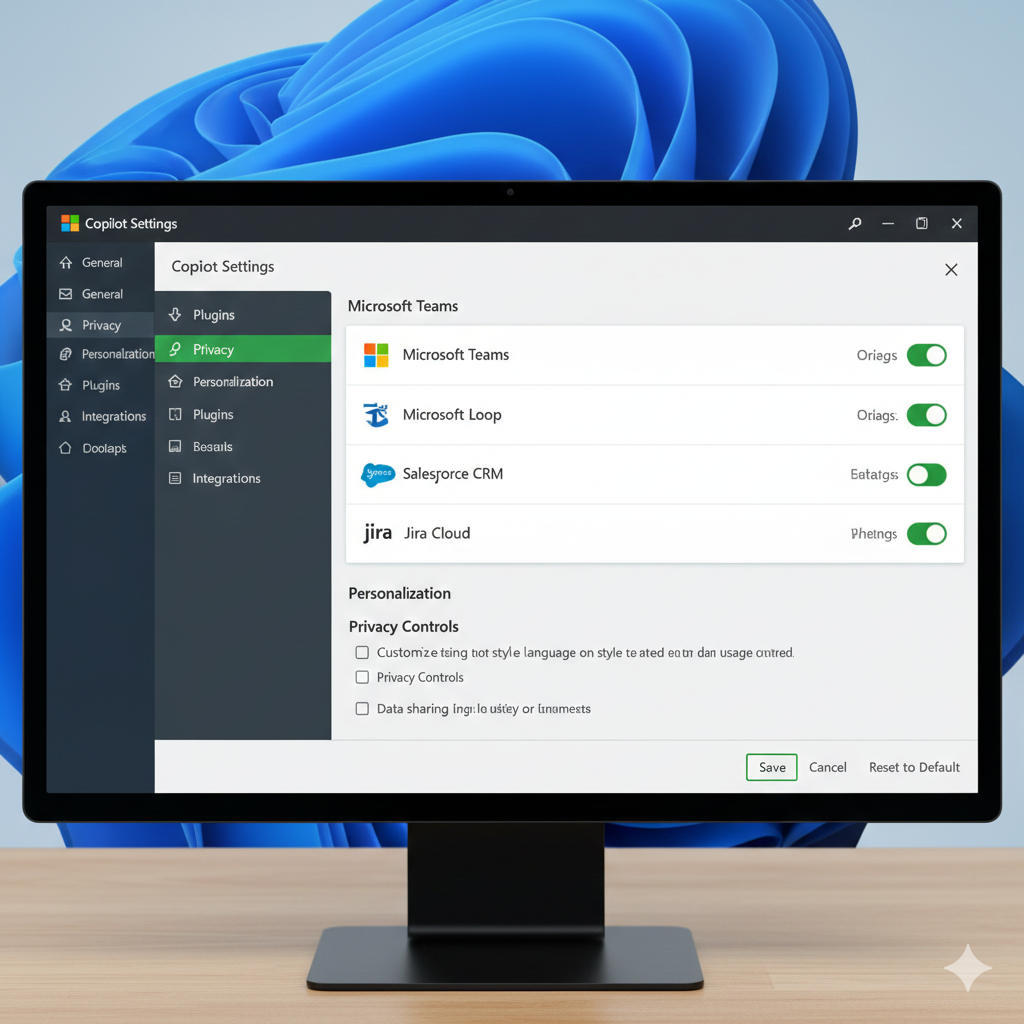
In the Microsoft 365 admin center, go to Copilot > Settings. Review these areas with your risk owner:
- User access. Pin Copilot Chat in Microsoft 365 apps and pin the Microsoft Copilot app to the Windows taskbar. Since January 2026, Copilot Chat cannot be unpinned from the app navigation for all users.
- Web search. Decide whether Copilot can use web search to supplement work answers. The admin policy is named Allow web search in Copilot. Users also have their own web search setting.
- Agents. Decide who can create, share, and use agents. Additional deployment and block controls are in Settings > Integrated apps.
- Copilot connectors. Leave external data sources off until the pilot is stable. Each connector brings a new set of permissions to review.
Users see a Work IQ switch in the Copilot app. When it is on, Copilot uses work data and the web. When it is off, Copilot uses the web and attachments only. Teach the pilot group what each position means for a confidential question.
Step 5: Write the rules before the pilot starts
Give the pilot group a one-page AI use policy. At a minimum, it should say:
- Which tools are approved for client information. The firm’s licensed Copilot is not the same as a personal AI account.
- That every AI output is a draft that a lawyer must review, and that every citation must be checked against the source.
- How the firm bills time when Copilot makes a task faster.
- When the firm will tell clients about AI use or ask for consent.
ABA Formal Opinion 512 (July 29, 2024) addresses competence, confidentiality, communication, supervision, and fees for generative AI. Florida Bar Ethics Opinion 24-1 recommends informed client consent before a lawyer uses a third-party generative AI program in a way that would disclose confidential information. Check your own jurisdiction’s guidance, and the standing orders of the courts where you appear.
Step 6: Run a four-week pilot
| Week | Focus | Example tasks |
|---|---|---|
| 1 | Email and meetings | Summarize a long thread in Outlook; recap a Teams meeting that has a transcript |
| 2 | Drafting | First draft of a client update in Word; tighten a letter; compare two versions |
| 3 | Finding information | Ask Copilot for the latest documents on a practice matter you have access to; check that it found the right files |
| 4 | Review and decide | Collect results, problems, and permission surprises; decide on the next group |
Ask pilot users to report any result that shows content they should not see. Each report is a permissions problem to fix, and it is the most valuable output of the pilot.
Step 7: Measure and expand
The Copilot Dashboard in Viva Insights shows licensed users, active users (at least one Copilot action in the past 28 days), usage levels, and returning users by app. It is available to Microsoft 365 business and enterprise customers with Exchange Online, without a paid Viva Insights license. Some features, such as benchmarks, need 50 or more licenses. The Microsoft 365 admin center also has a Copilot readiness report.
Usage numbers show activity, not value. Add the firm’s own measures: time for a sample task before and after, the number of edits a reviewer makes to AI-assisted drafts, and any confidentiality incidents. Expand to the next practice group only when the permissions report for that group is clean.
Practical walkthroughs
- Get Your Inbox Under Control with Copilot in Outlook, and Keep Privilege Safe
- Redline a Contract with Edit with Copilot in Word
- The Legal Prompt Makeover: Same Task, Better Prompt
- Check Every Citation Before You File
Go further
LGTCP101: Copilot for Legal Professionals is the starting course for the pilot group. LGTCP200: SharePoint with Copilot covers the site and permissions work. LGTCP400: Copilot for the Modern U.S. Law Firm covers confidentiality, supervision, and billing.
If you want help with licensing, the permissions cleanup, or the pilot, contact our team. We set up Microsoft Copilot for law firms and train the people who use it.
Sources
- License options for Microsoft Copilot, Microsoft Learn
- Microsoft Copilot requirements, Microsoft Learn
- Get ready for Microsoft 365 Copilot and agents with SharePoint Advanced Management, Microsoft Learn
- Restrict discovery of SharePoint sites and content, Microsoft Learn
- Data protection and auditing for Microsoft Copilot, Microsoft Learn
- Configure Microsoft Copilot settings in the Microsoft 365 admin center, Microsoft Learn
- Pin Microsoft Copilot Chat in the Microsoft 365 apps, Microsoft Learn
- Connect to the Microsoft Copilot Dashboard, Microsoft Learn
- ABA Formal Opinion 512 (July 29, 2024); Florida Bar Ethics Opinion 24-1
Current as of November 2026. Microsoft changes Copilot names, menus, and licensing often. Confirm each setting in your own tenant.