
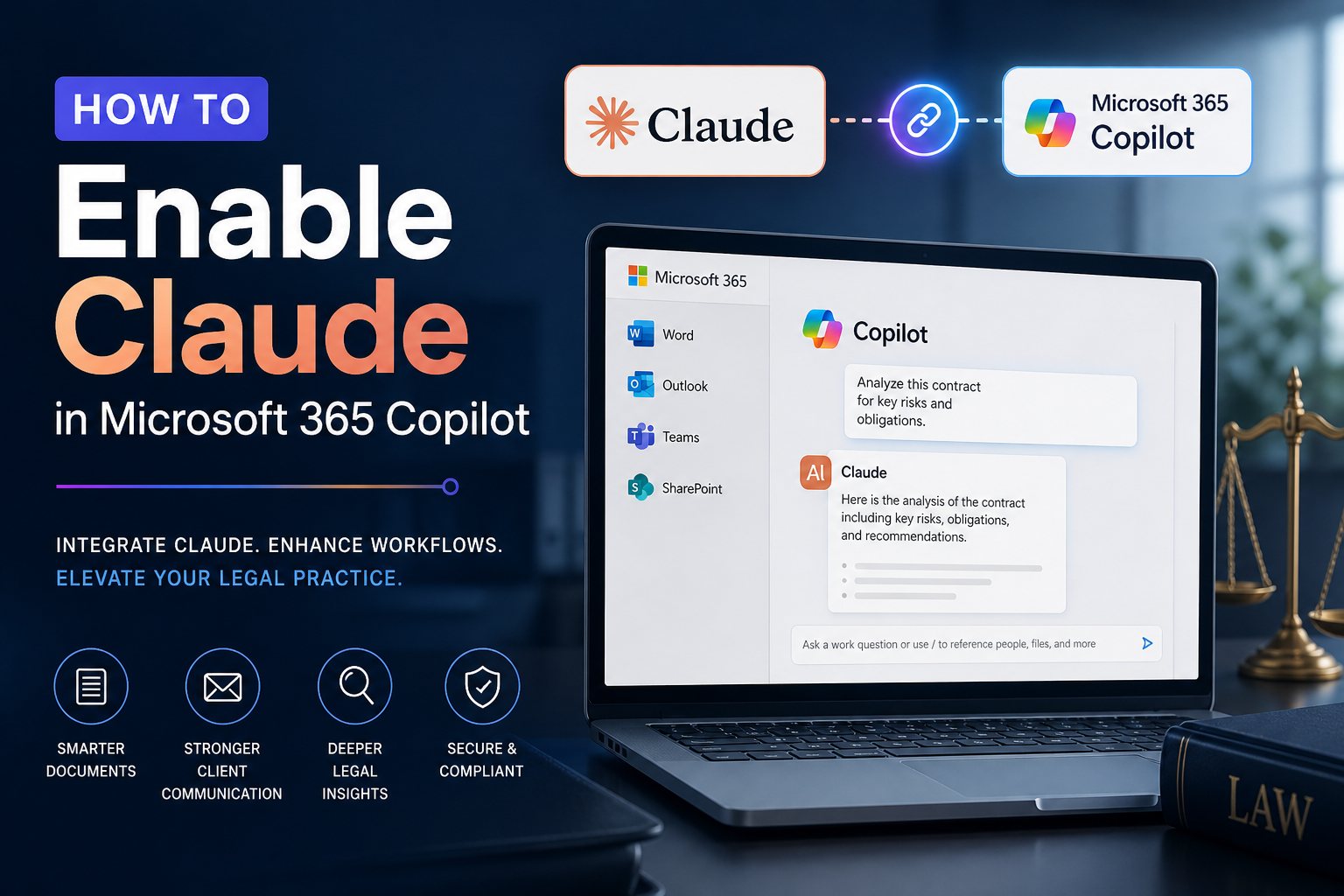
How to Enable Claude in Microsoft 365 Copilot: A Step-by-Step Guide for Law Firms
Published for legal technology decision-makers, operations managers, and attorneys evaluating multi-model AI strategies inside the Microsoft 365 ecosystem.
Why This Matters: The Business Case for Claude in Microsoft 365
For small and boutique law firms, AI inside Microsoft 365 Copilot has become a baseline expectation — but the default GPT-powered experience is no longer the only option. Microsoft now allows tenants to activate Anthropic’s Claude models alongside OpenAI inside Copilot, giving attorneys access to the long-context reasoning that Claude is known for: parsing 200-page deposition transcripts, drafting nuanced client correspondence, and synthesizing discovery materials without losing the thread. This guide walks firm administrators through enabling Anthropic as a Microsoft subprocessor, scoping access to the right users, and verifying that Claude is available in Researcher, Copilot Studio, Excel Agent Mode, and the Word/Excel/PowerPoint apps — all without leaving Microsoft’s compliance boundary.
Table of Contents
- Prerequisites and Requirements
- Stage 1: Confirm Your Tenant’s Default Status
- Stage 2: Enable Anthropic as a Subprocessor
- Stage 3: Scope Access to Specific Users or Groups
- Stage 4: Configure the Word/Excel/PowerPoint Setting
- Stage 5: Power Platform Controls for Copilot Studio
- Stage 6: User Verification — Selecting Claude in the Apps
- Troubleshooting Common Roadblocks
- Success Checklist
- Conclusion and Next Steps
Prerequisites and Requirements
Before you begin, confirm the following are in place. Missing any single item here will block the rollout.
- Microsoft 365 Copilot license assigned to the users who need Claude. Anthropic models are not available on personal, family, or unlicensed Business plans.
- Global Administrator or AI Administrator role in your tenant. The AI Administrator role is the least-privilege option and is recommended for ongoing management.
- Commercial cloud tenant. Anthropic models are not available in GCC, GCC High, DoD, or other sovereign clouds at this time, since FedRAMP authorization is not in place.
- A scoped pilot group in Microsoft Entra ID (formerly Azure AD). For a small firm, a security group named something like AI-Pilot-Attorneys with three to five users is ideal for an initial rollout.
- Reviewed Microsoft Product Terms and DPA. Anthropic operates as a Microsoft subprocessor under Microsoft’s Data Protection Addendum and Enterprise Data Protection — but you should confirm with your firm’s compliance counsel that this aligns with client engagement letters and any matter-specific data handling obligations.
Pro-Tip for Boutique Firms: If you handle EU-based client matters or have a UK office, note that Anthropic models are currently excluded from the EU Data Boundary. For matters subject to GDPR data residency commitments, default to GPT models or restrict Claude usage by group membership (covered in Stage 3).
Stage 1: Confirm Your Tenant’s Default Status
As of January 7, 2026, Microsoft began enabling Anthropic models on by default for most commercial cloud tenants outside the EU/EFTA/UK. EU/EFTA/UK tenants — and any tenant created after specific cutoff dates — may have it set to Off. Your first job is to find out where your tenant currently stands.
- Sign in to https://admin.microsoft.com using a Global Administrator or AI Administrator account.
- In the left navigation, locate Copilot at the top of the navigation pane. (Note: Copilot settings are not nested under the standard Settings menu.)
- Select Copilot → Settings.
- Click View all to expose every Copilot-related configuration option.
- Find the entry labeled AI providers operating as Microsoft subprocessors and click into it.
- Note the current state of the Anthropic toggle — On or Off — and which users or groups currently have access.
Note: If you do not see the AI providers option at all, your tenant is likely in a government or sovereign cloud, or the rollout has not yet reached your region. Microsoft expected full general availability by the end of March 2026; if you are reading this later and still cannot find the toggle, open a support ticket through the admin center.
Stage 2: Enable Anthropic as a Subprocessor
This is the master switch. Without it, every downstream Claude experience — Researcher, Copilot Studio, Excel Agent Mode, and the in-app model picker — will remain inaccessible to your users.
- From the AI providers operating as Microsoft subprocessors page, locate the Available subprocessors for your organization section.
- Select Anthropic.
- Carefully review the legal text describing Anthropic’s role as a subprocessor under Microsoft’s Product Terms and Data Protection Addendum. For a law firm, this review should not be perfunctory — pay attention to data flow, retention, and the explicit note that Anthropic models are hosted outside Microsoft-managed environments.
- Check the agreement box confirming you accept the terms.
- Click Save.
- Allow propagation. Most changes take effect within 2 to 60 minutes, though full availability across every Copilot surface can take up to 24 hours.
Pro-Tip: Document this approval in your firm’s IT change log along with the date, the approving partner or operations lead, and the scope decision (tenant-wide vs. group-scoped). For firms subject to ABA Formal Opinion 512 or state bar AI guidance, this paper trail demonstrates competent supervision of generative AI tools.
Stage 3: Scope Access to Specific Users or Groups
Tenant-wide enablement is rarely the right answer for a law firm. A scoped rollout — pilot group first, then phased expansion — gives you time to validate output quality, confirm no client-confidential data is being mishandled, and train attorneys on when Claude is the right tool versus GPT.
- While still on the Anthropic provider page, find the section Choose who can access Anthropic models for Copilot and generative AI experiences.
- Select Specific users or groups rather than the default “Everyone.”
- Add your pre-built pilot security group (for example, AI-Pilot-Attorneys) or individual users by their User Principal Name.
- Click Save.
- Communicate the change to the included users with a one-page internal memo covering: which models are now available, when to use Claude versus GPT, and any matters or client types where AI use is restricted.
Recommended Pilot Composition for a Small Firm
- One litigation attorney who can evaluate Claude on long deposition transcripts and discovery review.
- One transactional attorney who can test Claude on contract analysis and clause comparison.
- The firm’s operations manager or paralegal lead who can evaluate Researcher for matter intake summaries and client onboarding workflows.
- The managing partner or AI committee chair for executive-level review.
Stage 4: Configure the Word/Excel/PowerPoint Setting
Microsoft introduced a separate, more granular setting on April 3, 2026, called Copilot in M365 apps with Anthropic models. This is distinct from the global subprocessor toggle and controls whether Claude appears as a model option specifically inside Word, Excel, and PowerPoint Copilot panes.
- From the admin center, navigate to Copilot → Settings → View all.
- Locate the setting Copilot in Microsoft 365 apps with Anthropic models.
- Confirm whether the setting is on or off for your tenant. EU/EFTA/UK tenants created after March 25, 2026, have this on by default; older tenants in those regions may need to opt in manually.
- If you want Claude available inside Word, Excel, and PowerPoint Copilot panes, ensure this setting is On.
- Save and allow up to one hour for propagation.
Note: Tenants that previously used Anthropic models under Anthropic’s separate commercial terms (the deprecated opt-in path) need to re-enable through the new subprocessor framework. The previous arrangement is being retired and is no longer supported as a compliance posture.
Stage 5: Power Platform Controls for Copilot Studio
If your firm builds custom agents in Copilot Studio — for example, an intake bot for new client inquiries or a conflict-check assistant — you have an additional layer of control in the Power Platform admin center.
- Sign in to https://admin.powerplatform.microsoft.com.
- Navigate to the environment in which your Copilot Studio agents live.
- Open Settings → Generative AI (the exact path may vary slightly by environment type).
- Locate the option for Allow external large language models and confirm Anthropic is enabled at the environment level.
- Optionally, use environment-level controls to scope which makers can build agents using Claude versus GPT.
Pro-Tip for Operations Managers: If Anthropic is disabled at the Power Platform level, agents that were built to use Claude will silently fall back to GPT-4o. Test every production agent after any subprocessor change to confirm output quality has not shifted in unexpected ways — particularly important for any agent that handles client-facing communication.
Stage 6: User Verification — Selecting Claude in the Apps
Once admin configuration is complete and propagation has finished, the users in your scoped group can begin selecting Claude in the supported experiences. Walk through each surface to confirm everything is working before declaring the rollout complete.
Verifying Researcher
- Open the Microsoft 365 Copilot app on desktop or web (mobile is not yet supported for Researcher with Claude).
- In the chat interface, select Agents and choose Researcher.
- Look for a model selector at the top of the Researcher pane and select Claude.
- Run a sample query — for instance, “Summarize the key arguments in the attached appellate brief and identify the strongest counterarguments based on recent Tenth Circuit precedent.”
Verifying Excel Agent Mode
- Open Excel and create or open a spreadsheet.
- Activate the Copilot pane and switch to Agent Mode.
- Select Claude from the model picker.
- Test with a real-world legal use case — for example, “Build a settlement matrix from this damages spreadsheet showing best case, worst case, and most likely outcomes by claim category.”
Verifying Copilot Studio
- Open https://copilotstudio.microsoft.com.
- Create a new agent or open an existing one.
- In the agent’s model configuration, confirm that Claude Sonnet 4 and Claude Opus 4.1 appear as selectable options alongside the GPT models.
Pro-Tip: Claude is selected per session. When a user closes the Copilot app or ends the Researcher session, the system reverts to the default Microsoft generative AI model. Train attorneys to confirm the model selector at the start of every substantive task — particularly for matter work where the choice of model is logged in your firm’s AI usage records.
Troubleshooting Common Roadblocks
| Roadblock | Likely Cause | Solution |
|---|---|---|
| Anthropic toggle does not appear in the admin center | Tenant is in GCC, GCC High, DoD, or another sovereign cloud, or rollout has not reached your region | Confirm cloud type. For commercial tenants experiencing delays, open a Microsoft support ticket via Admin Center → Support. |
| Setting saved but Claude does not appear in apps | Propagation delay or app-specific setting not enabled | Wait up to 60 minutes; sign out and back in; verify the separate “Copilot in M365 apps with Anthropic models” setting is also On. |
| Users in pilot group still cannot select Claude | Group scoping not applied or user not refreshed | Confirm group membership in Entra ID; have the user fully sign out of all M365 apps and sign back in. |
| Copilot Studio agent silently produces lower-quality output after change | Anthropic disabled at Power Platform level — agent fell back to GPT-4o | Re-enable Anthropic in PPAC at the environment level and retest the agent. |
| “We are unable to initiate the deployment” error when installing the standalone Microsoft 365 Connector for Claude | Different product. The connector for the standalone Claude app requires Entra admin consent and is separate from this Copilot integration | For Copilot integration, ignore the standalone connector. If you specifically want the Claude app to read M365 data, coordinate with your Entra Global Administrator on consent flow. |
| EU office attorneys cannot access Claude | EU/EFTA/UK tenants have the setting Off by default | If compliant with your firm’s data residency obligations, opt in manually. Otherwise, restrict Claude to non-EU users via group scoping. |
Success Checklist
Before you consider the deployment complete, walk through this checklist with your operations manager or IT lead.
- ☐ Microsoft 365 Copilot licenses confirmed for all pilot users
- ☐ Admin role (Global Administrator or AI Administrator) confirmed
- ☐ Anthropic enabled in Microsoft 365 admin center as a subprocessor
- ☐ Microsoft Product Terms and DPA reviewed and approved internally
- ☐ Pilot group created in Entra ID and scoped to Anthropic access
- ☐ Copilot in M365 apps with Anthropic models setting confirmed (On or Off intentionally)
- ☐ Power Platform admin center configured for Copilot Studio agents
- ☐ Pilot user successfully selected Claude in Researcher
- ☐ Pilot user successfully selected Claude in Excel Agent Mode
- ☐ Claude Sonnet and Opus appear in Copilot Studio model picker
- ☐ Internal memo distributed to pilot users covering when to use Claude vs. GPT
- ☐ Change documented in firm’s IT change log with date and approving authority
- ☐ Client matter restrictions communicated where applicable
Conclusion and Next Steps
Enabling Claude inside Microsoft 365 Copilot is no longer an experimental capability — it is a documented, supported, and contractually governed configuration that any small or boutique law firm can deploy in a single afternoon. With the steps above, your attorneys now have model choice on the work that matters most: long-form discovery analysis, nuanced client correspondence, and complex multistep reasoning across emails, files, and meeting transcripts. The next move is governance. Build a written AI usage policy that names which model fits which task, define matter types where AI use is restricted, and schedule a 30-day pilot review to compare Claude and GPT output across real firm work. Once the pilot validates value, scale to the full attorney roster and revisit your Copilot Studio agents to take advantage of Claude’s stronger reasoning for client-facing automation.