

How to Boost Productivity in Small Firms with Chrome’s New AI Skills: A Step‑by‑Step Guide for Attorneys and Professional Services
Small and boutique law firms juggle research, client communications, and document review with lean teams and limited time. Repeating the same AI prompts to summarize opinions, draft intake emails, or compare vendor pages across multiple tabs slows everyone down. Chrome’s new AI Skills feature lets you save your best prompts as reusable one‑click workflows in the Gemini side panel, so you can apply them to the page you’re viewing—and even across multiple tabs—without starting from scratch. The result: faster research, consistent outputs, and measurable time savings across discovery, client onboarding, and matter management. ([blog.google](https://blog.google/products-and-platforms/products/chrome/skills-in-chrome/))
- Prerequisites / What You’ll Need
- 1) Enable Gemini in Chrome and Turn On Skills
- 2) Build Your First Three Legal Skills (IRAC, Intake Email, Discovery Checklist)
- 3) Run Skills Across Multiple Tabs and Capture Results
- 4) Connect Outputs to Microsoft 365 and Your Legal Stack
- 5) Configure Privacy, Governance, and Retention
- 6) Train Your Team and Measure ROI
- Troubleshooting
- Success Checklist
- Conclusion & Next Steps
Prerequisites / What You’ll Need
- Google Chrome on desktop (Mac, Windows, or ChromeOS) updated to the latest version.
- Gemini in Chrome enabled in the side panel. Availability is rolling out; set Chrome language to English (United States) for initial access. ([blog.google](https://blog.google/products-and-platforms/products/chrome/skills-in-chrome/))
- A Google Account (preferably your firm’s managed Google Workspace account) signed into Chrome.
- Optional but recommended: Chrome managed by your firm’s IT/admin (Chrome Browser Cloud Management) for policy controls.
- Sample materials to work with:
- One open tab with a court opinion (for IRAC summary).
- One open tab with a client inquiry or contact form submission (for intake response).
- Two to five tabs with vendor pages, statutes, or case summaries (for cross‑tab comparisons and checklists).
1) Enable Gemini in Chrome and Turn On Skills
Steps
- Update Chrome:
- Click the three‑dot menu > Help > About Google Chrome.
- Allow Chrome to update and relaunch.
- Confirm language settings:
- Go to chrome://settings/languages.
- Set “Preferred language” to English (United States).
- Open the Gemini side panel:
- In the top‑right of Chrome, click the Gemini icon to open the side panel.
- Sign in if prompted using your work account.
- Access Skills in Gemini:
- In the side panel, type “/” (forward slash) or click the “+” button to open your Skills list.
- If you’re using Skills for the first time, you’ll see starter options and a link to the Skills library.
Note: Skills let you save prompts directly from your chat history and run them with one click on the current page—and on any additional tabs you select. Skills are rolling out on desktop (Mac, Windows, ChromeOS) with English‑US language first. ([blog.google](https://blog.google/products-and-platforms/products/chrome/skills-in-chrome/))
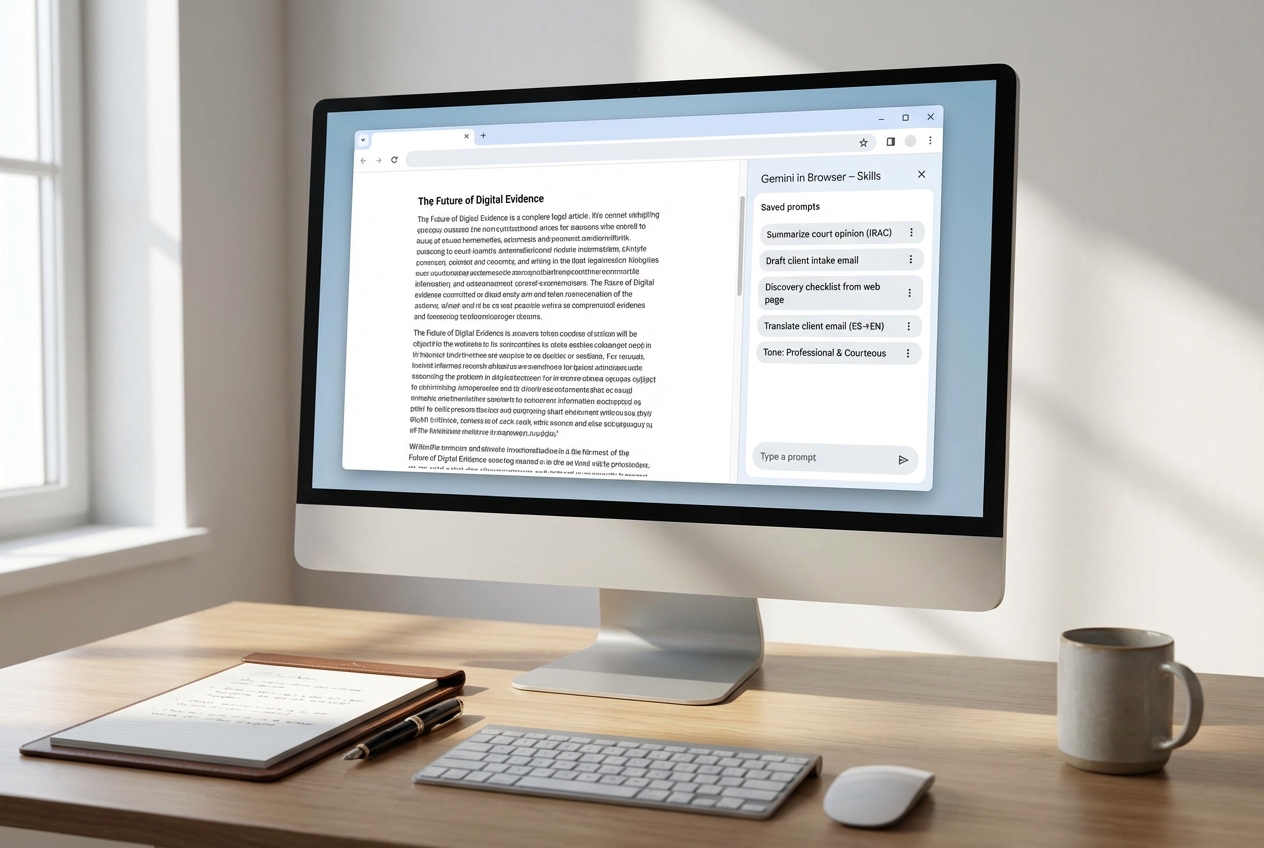
2) Build Your First Three Legal Skills (IRAC, Intake Email, Discovery Checklist)
Below are three high‑yield Skills for small firms. Each takes under five minutes to build and will save hours weekly once reused across matters.
Skill A: “Summarize Court Opinion (IRAC)”
- Open a tab with a court opinion.
- In the Gemini panel, type your IRAC prompt. Example:
- “Apply IRAC to summarize this opinion. Identify primary issue(s), controlling rule(s) with citations, analyze parties’ arguments, and provide a concise conclusion. Highlight standard of review and jurisdiction. Return: 200–300 words, bullet points, and a one‑line holding.”
- Save as a Skill:
- Click the options icon on your Gemini message and choose “Save as Skill,” or use the prompt composer’s “Save” option after sending the message.
- Name: “Summarize court opinion (IRAC)”.
- Optional trigger: “/irac”.
- Test on the current page and adjust tone/length as needed.
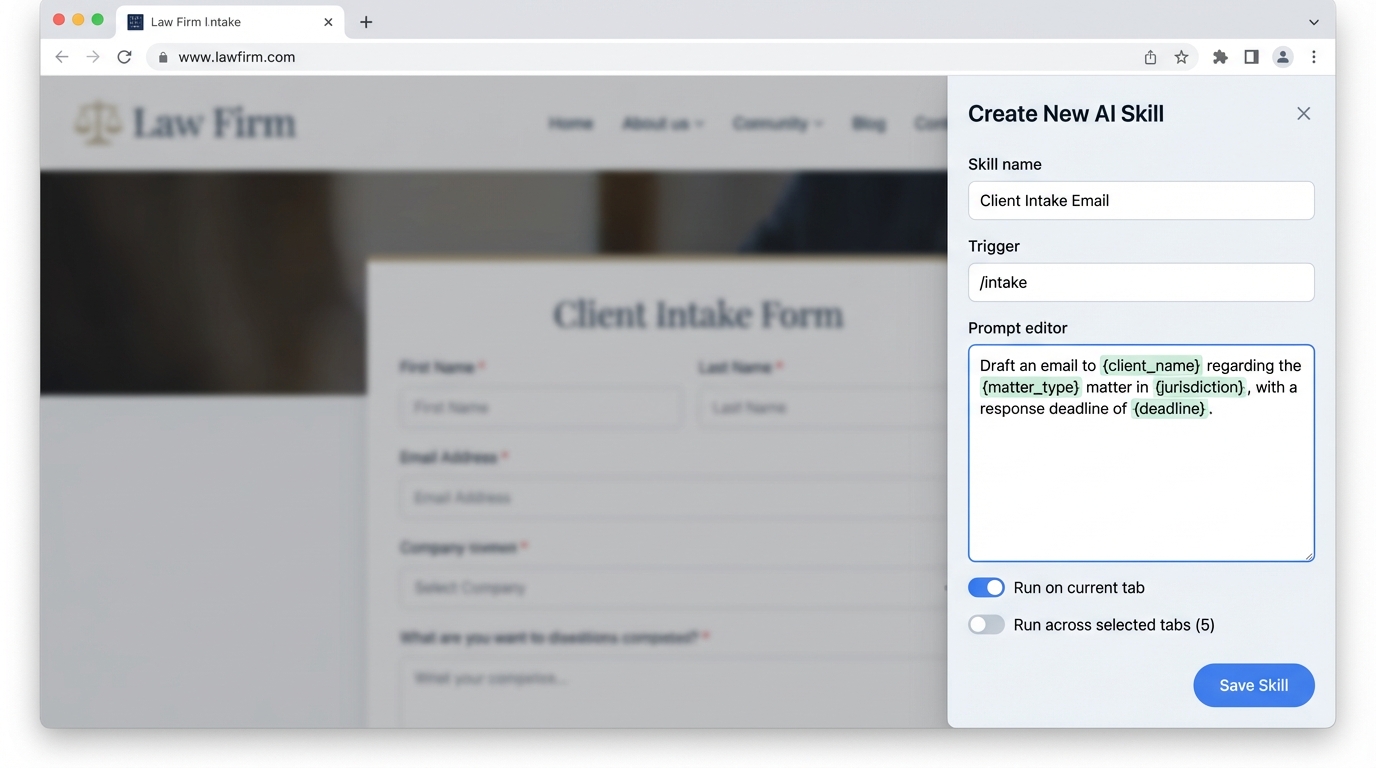
Skill B: “Draft Client Intake Email”
- Open a tab with a client inquiry or a lead form submission.
- Compose your prompt with variables:
- “Draft a courteous intake email to {client_name} regarding {matter_type} in {jurisdiction}. Confirm receipt, request key facts, attach our intake questionnaire link {intake_link}, propose 2–3 consult slots within {deadline} days, and include our disclaimer about no attorney‑client relationship until engagement letter is signed. Tone: professional and empathetic. 175–225 words.”
- Save as a Skill:
- Name: “Client Intake Email”.
- Trigger: “/intake”.
- When running the Skill later, replace the bracketed variables inline or in the mini‑form Gemini displays.
Skill C: “Discovery Checklist from Web Page”
- Open a tab that contains matter background (e.g., an opposing party’s product page, a news article, or a public filing).
- Use this prompt:
- “From the page context, produce a preliminary discovery checklist. Include: key custodians, likely data sources (email, chat, SaaS), relevant timeframes, anticipated ESI formats, third‑party sources, and potential protective order issues. Output: table with Item, Rationale, Priority, and Next Action.”
- Save as “Discovery checklist from web page”. Trigger: “/discovery”.
Pro‑Tip: You can also add Skills from Google’s prebuilt library and then customize the prompt to your use case—handy for quick wins like side‑by‑side comparisons or long‑document scanning. ([blog.google](https://blog.google/products-and-platforms/products/chrome/skills-in-chrome/))
3) Run Skills Across Multiple Tabs and Capture Results
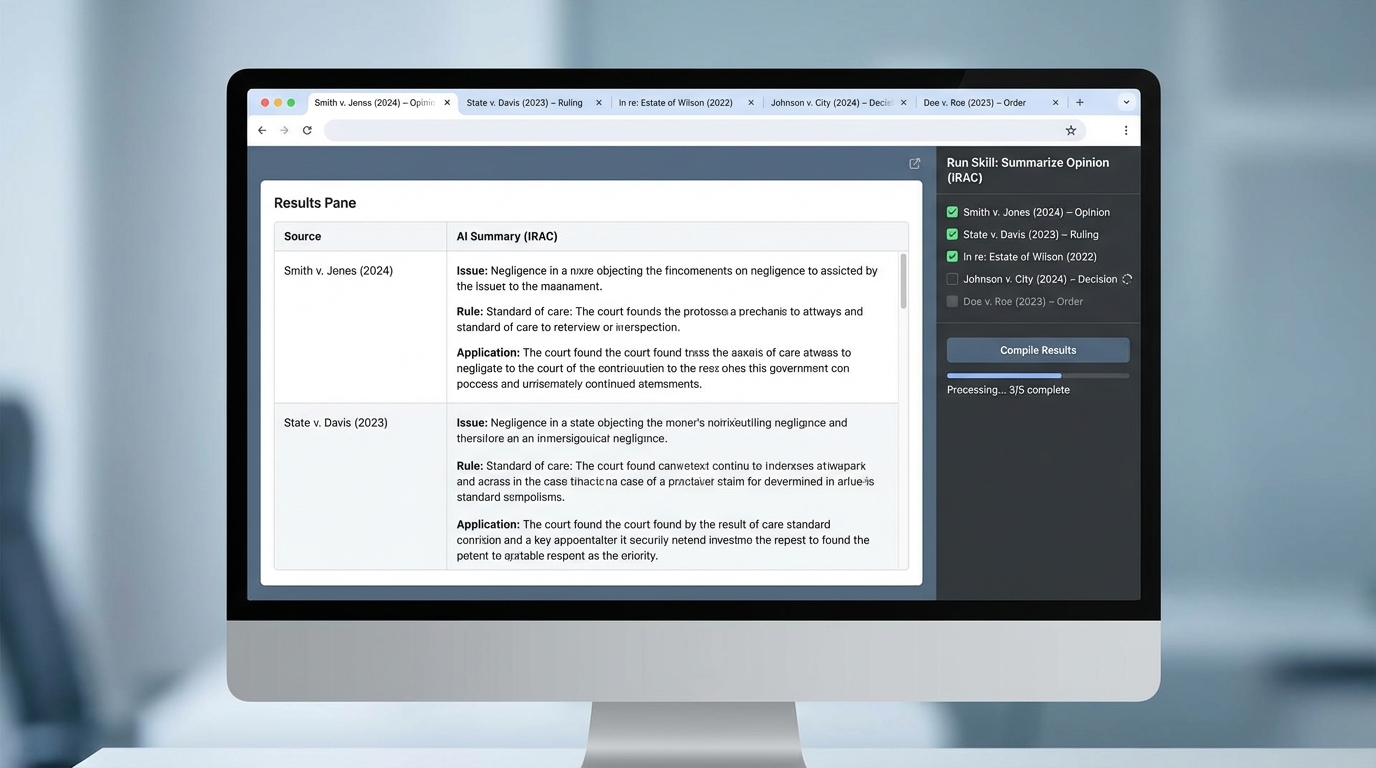
One of the biggest time savers for attorneys is applying the same Skill across several open resources—cases, statutes, vendor pages—at once. Chrome’s Skills workflow supports selecting additional tabs when you run a Skill, so you can produce consistent, parallel outputs in a single pass. ([blog.google](https://blog.google/products-and-platforms/products/chrome/skills-in-chrome/))
Steps
- Open all relevant tabs (e.g., three appellate opinions on the same issue).
- In the Gemini side panel, type “/” and click your saved Skill (e.g., “Summarize court opinion (IRAC)”).
- When prompted, choose where to run:
- “This tab” to apply the Skill to the current page.
- “Select tabs” to check off additional tabs. Start with 3–5 to keep outputs readable.
- Run the Skill and monitor progress in the panel. As each tab completes, copy the result to your drafting workspace or export to a note.
- For comparisons (e.g., expert vendor pages), run a “Compare options” Skill to generate a side‑by‑side matrix with cost, features, support model, and security notes.
Pro‑Tip: Name your tabs clearly before running a multi‑tab Skill. The results often inherit tab titles, which makes citation and linking back easier in your memo or client advisory.
4) Connect Outputs to Microsoft 365 and Your Legal Stack
Once your Skills are producing reliable outputs, streamline hand‑offs into Microsoft 365 and your matter systems to avoid copy‑paste drift and to preserve audit trails.
A. Drafting and Templates in Microsoft Word
- Create a “Working Notes” document in Word for each matter and section it by tab/source.
- Paste IRAC summaries beneath headings (Issue, Rule, Analysis, Conclusion). Add authority links or citations as you validate them.
- Save reusable boilerplate as Building Blocks (Insert > Quick Parts > Save Selection) for motions, client advisories, and engagement letters.
B. Email and Scheduling in Outlook
- Convert your Intake Email Skill output to an Outlook template (File > Save As > Outlook Template) and store it in a shared templates folder.
- Add availability using FindTime or your calendar’s “Propose New Time” feature and link your intake questionnaire (e.g., Microsoft Forms).
- Use Categories (e.g., “Intake—Pending Docs”) to track follow‑ups.
C. SharePoint/OneDrive for Evidence and Checklists
- Save Discovery checklists to a matter‑specific SharePoint site. Give each checklist a version number (e.g., DC‑v1.2) and store source URLs in a “References” column.
- Use a List or Planner board for “Next Actions” generated by your Skill (custodian interviews, holds, subpoenas).
D. Power Automate: Light‑touch Workflow
- Create a flow: when a file is added to the “AI‑Notes” folder in OneDrive, append metadata (Matter, Author, Source Tabs) and notify the matter team in Teams.
- Optional: create a manual trigger in Power Automate for “Redact PII from AI output” using a predefined regex step before distribution to clients.
Pro‑Tip: Keep the AI output “close to the source.” Save the text along with the URLs of the tabs you applied it to, and add a one‑sentence validation note. This trims review cycles and strengthens your work product file.
5) Configure Privacy, Governance, and Retention
Productivity gains must align with client confidentiality. Treat Skills like any other tool that can process matter data, and put light controls in place.
A. Prompt Hygiene and Redaction
- Do not include client names, SSNs, account numbers, or medical details in prompts unless your firm’s policy explicitly allows it and you’ve vetted the risk.
- Prefer abstracted variables in Skills (e.g., {client_name_initials}, {matter_type}, {deadline_days}) and merge full details downstream in Word/Outlook templates.
- Adopt a simple redaction checklist: search outputs for names, emails, phone numbers, case numbers, or docket links before sharing externally.
B. Managed Chrome and Admin Controls
- Enroll firm browsers into Chrome Browser Cloud Management to centrally apply policies (update cadence, extension allow/block lists, side‑panel availability).
- Use DLP and access rules at the content layer (e.g., SharePoint/Drive) to control where AI outputs are stored.
- Document who can create firm‑shared Skills and where “approved Skills” live (e.g., an internal wiki or SharePoint page).
C. Consent and Action Confirmation
- Chrome indicates when a Skill will take an action (like adding a calendar event) and requires confirmation—keep this enabled and train staff to read prompts before approving. ([blog.google](https://blog.google/products-and-platforms/products/chrome/skills-in-chrome/))
- For client‑facing uses (e.g., intake emails), include “AI‑assisted drafting” in your internal procedures and quality checks.
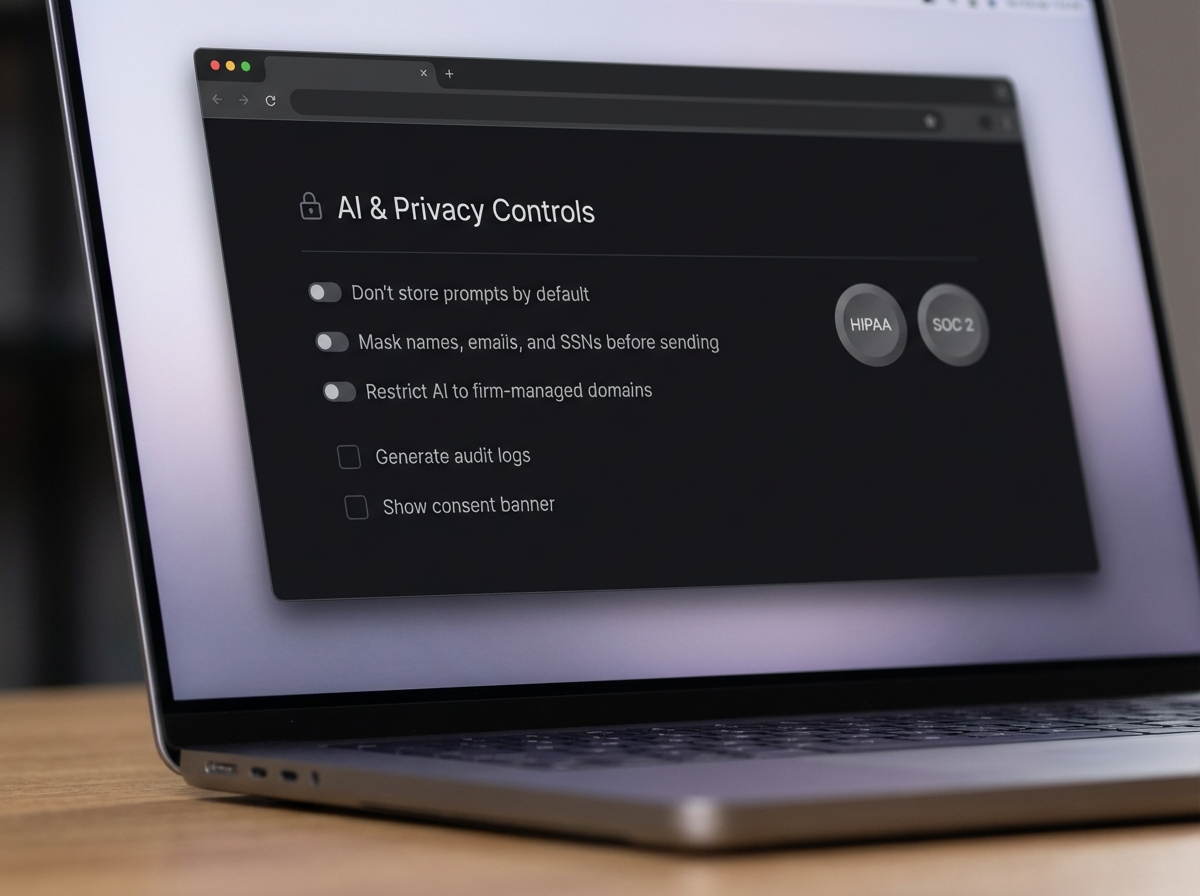
Note: The image above is a conceptual example to illustrate policy themes. Your actual controls will live in Chrome Browser Cloud Management, Google Workspace, or Microsoft 365 compliance centers depending on your environment.
6) Train Your Team and Measure ROI
A. Establish Naming Conventions
- Prefix Skills by practice area: “CIV‑IRAC‑CA”, “IP‑Cease‑And‑Desist‑Draft”, “IMM‑RFE‑Checklist”.
- Keep trigger names short and memorable: “/irac”, “/intake”, “/rfe”.
B. Build a Firm Skills Library
- Start with 6–10 approved Skills covering intake, research summaries, discovery checklists, expert/vendor comparisons, and client updates.
- Publish each Skill with: name, trigger, prompt text, intended use, and example output.
C. Track Outcomes
- Time saved per task (baseline vs. with Skill): aim for 30–60% time reduction on repeatable workflows.
- Quality measures: partner review edits per page, turnaround time from request to draft, internal rework rate.
- Adoption: weekly count of Skills run, top 5 Skills by usage, Skills with low usage to revise or retire.
Pro‑Tip: Public coverage notes that Skills are designed to reduce repetitive prompting and make common actions one‑click inside Chrome’s side panel—directly where work happens. Remind attorneys to open relevant tabs first so Skills can pull the right context. ([androidcentral.com](https://www.androidcentral.com/apps-software/tired-of-repeating-ai-prompts-chromes-new-feature-handles-it-for-you?utm_source=openai))
Troubleshooting
| Roadblock | Solution |
|---|---|
| I don’t see the Gemini icon or Skills in the side panel. | Update Chrome, sign in with your work account, and set language to English (United States). Skills are rolling out to desktop first. Managed devices may require IT to allow the feature. ([blog.google](https://blog.google/products-and-platforms/products/chrome/skills-in-chrome/)) |
| Typing “/” doesn’t show my saved Skill. | Open the Gemini side panel first, then type “/”. If the Skill was saved from chat history, confirm you saved it on the same account and that sync is on. |
| I can run a Skill in this tab, but not across multiple tabs. | When launching the Skill, choose “Select tabs” and check the additional tabs you want to include. Start with a few tabs to validate behavior. ([blog.google](https://blog.google/products-and-platforms/products/chrome/skills-in-chrome/)) |
| Outputs are inconsistent or too long. | Tighten the prompt with explicit word targets, bullets vs. prose, and mandatory fields (e.g., “Return: 200–300 words, headings for Issue/Rule/Analysis/Conclusion”). Save the refined version as an update to your Skill. |
| Firm policy concerns about client data. | Use variables in prompts (e.g., {client_initials}) and merge specifics later. Store outputs in SharePoint/Drive with DLP. Train staff on confirmation dialogs before any action Skills execute. ([blog.google](https://blog.google/products-and-platforms/products/chrome/skills-in-chrome/)) |
| Team members can’t find the shared “approved” Skills. | Document approved Skills in your internal wiki/SharePoint with clear names and triggers. Encourage users to “Add from library” and then customize if allowed. |
| Gemini panel appears but Skills library link is missing. | Use the “+” button or type “/” to bring up Skills. If still missing, sign out/in or try another managed profile to confirm it’s not a policy block. ([blog.google](https://blog.google/products-and-platforms/products/chrome/skills-in-chrome/)) |
| My Skill tries to act (send email/add calendar) without review. | By design, Skills ask for confirmation before taking certain actions. Don’t approve until content is reviewed for accuracy and confidentiality. ([blog.google](https://blog.google/products-and-platforms/products/chrome/skills-in-chrome/)) |
Success Checklist
- Chrome updated; language set to English (US); Gemini side panel visible.
- Three core Skills saved and tested: IRAC summary, Intake email, Discovery checklist.
- At least one Skill run across three or more tabs with consistent outputs.
- Outputs saved to Word/SharePoint/OneDrive with matter metadata and source URLs.
- Prompt hygiene in place: no PII in prompts; variables used for sensitive fields.
- Basic governance: who can create firm Skills, where they live, and how changes are approved.
- Metrics defined: time saved, quality measures, adoption tracking.
Conclusion & Next Steps
Chrome’s AI Skills eliminate the friction of retyping prompts and let small firms operationalize repeatable tasks—whether you’re summarizing appellate opinions, drafting intake emails, or building discovery checklists. Start with three high‑impact Skills, run them where your work lives (the page you’re viewing and any extra tabs you select), and connect results into Microsoft 365 so nothing gets lost between research and drafting. With a lightweight governance layer and a firm library of named Skills, your team will spend less time wrangling tabs and more time advising clients. Explore Google’s Skills library to accelerate your rollout and keep iterating as your matters evolve. ([blog.google](https://blog.google/products-and-platforms/products/chrome/skills-in-chrome/))
Ready to explore how you can leverage technology and AI? Reach out to info@legalgpts.com today for expert guidance and tailored strategies.