

Step-by-Step: How to Use Google’s “Gemini Spark” AI Assistant to Boost Small Business Productivity
Small and boutique law firms juggle intake, scheduling, drafting, discovery, and client updates—often with lean teams and thin margins. This tutorial shows you, step by step, how to stand up a practical Gemini-powered assistant—“Gemini Spark”—inside Google Workspace to automate repetitive work while preserving confidentiality and control. You’ll design targeted workflows (intake triage, conflict checking, engagement letter drafting, discovery summarization, and scheduling), implement least‑privilege access, and roll out a change‑managed pilot that produces measurable time savings within two weeks. The result: faster client response times, fewer manual bottlenecks, and a more consistent, auditable process that scales with your caseload.
- Prerequisites / What You’ll Need
- Stage 1 — Define High-Value Use Cases and Data Boundaries
- Stage 2 — Prepare Google Workspace Security and Access
- Stage 3 — Turn On Gemini and Configure Your Private “Gemini Spark” Assistant
- Stage 4 — Build Four Core Automations (Intake, Drafting, Discovery, Scheduling)
- Stage 5 — Rollout, Training, and Governance-in-Use
- Stage 6 — Measure Impact and Iterate with a Lightweight Ops Dashboard
- Troubleshooting Table
- Success Checklist
- Conclusion & Next Steps
Prerequisites / What You’ll Need
- Google Workspace (Business Standard or above recommended) with admin access for setup.
- Gemini capabilities for your Workspace domain (e.g., Gemini for Business or comparable offering) to use Gemini inside Gmail/Docs/Sheets/Chat.
- One shared drive for “Matters,” one for “Firm Operations.”
- Template documents: Engagement Letter, Conflict Check Sheet, Discovery Summary Outline, Client Update Email.
- A pilot practice area (e.g., employment, family law, or personal injury) and 2–3 recent matters for testing.
- Time-block: 2–3 hours initial configuration; 3–5 hours automation build and testing; 60 minutes staff training.
Stage 1 — Define High-Value Use Cases and Data Boundaries
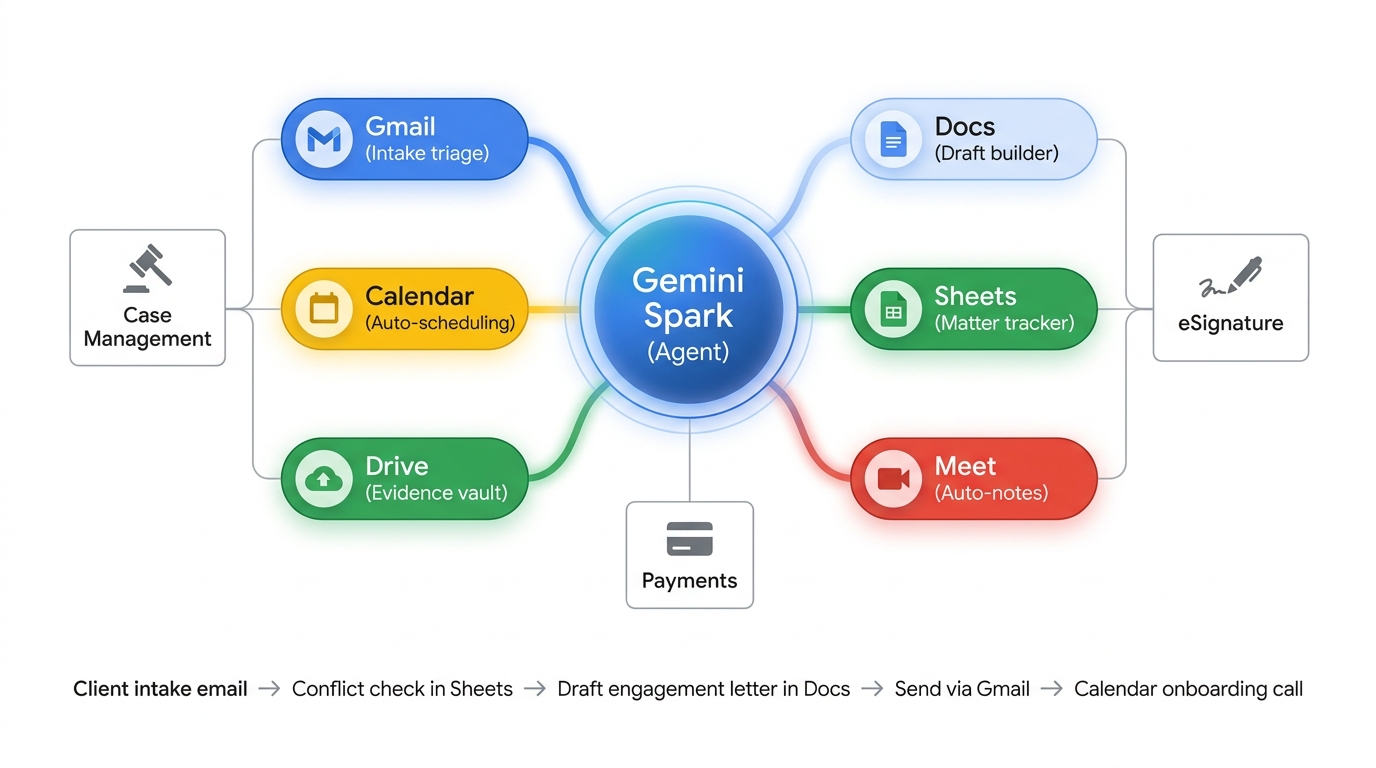
Before touching settings, decide exactly what you want “Gemini Spark” to do and what it must never do. In this guide, “Gemini Spark” refers to a Gemini-powered assistant you configure within Google Workspace that orchestrates Gmail, Calendar, Drive, Docs, and Sheets to reduce manual work.
Targeted legal workflows we’ll implement
- Client intake triage from Gmail, with auto-labeling and conflict-check prompts.
- Drafting: Generate a first-draft engagement letter in Google Docs with matter details merged from a Sheet.
- Discovery support: Summarize uploaded PDFs and exhibits into a concise outline for attorney review.
- Scheduling: Offer and book onboarding calls via Google Calendar/Meet and send confirmations.
Map data sources and guardrails (15–30 minutes)
- List data “in scope”: new intake emails and attachments, basic client contact info, publicly filed pleadings, and case metadata stored in Sheets.
- List data “out of scope” for AI processing without explicit attorney review: privileged strategy memos, sealed records, and documents subject to protective orders.
- Define retention: Intake summaries kept in Sheets; generated drafts in Docs; discovery summaries stored in the matter’s Drive folder.
- Write a one-paragraph “safety charter” for your assistant: what it’s allowed to summarize, draft, or suggest—and when it must defer to a human.
Pro-Tip: Keep a one-page “Matter Data Map.” Columns: Source (Gmail/Drive), Content Type (intake email, pleading), Sensitivity (low/medium/high), Storage (Drive path), AI Action (summarize/draft/skip), Human Reviewer (name/role).
Stage 2 — Prepare Google Workspace Security and Access
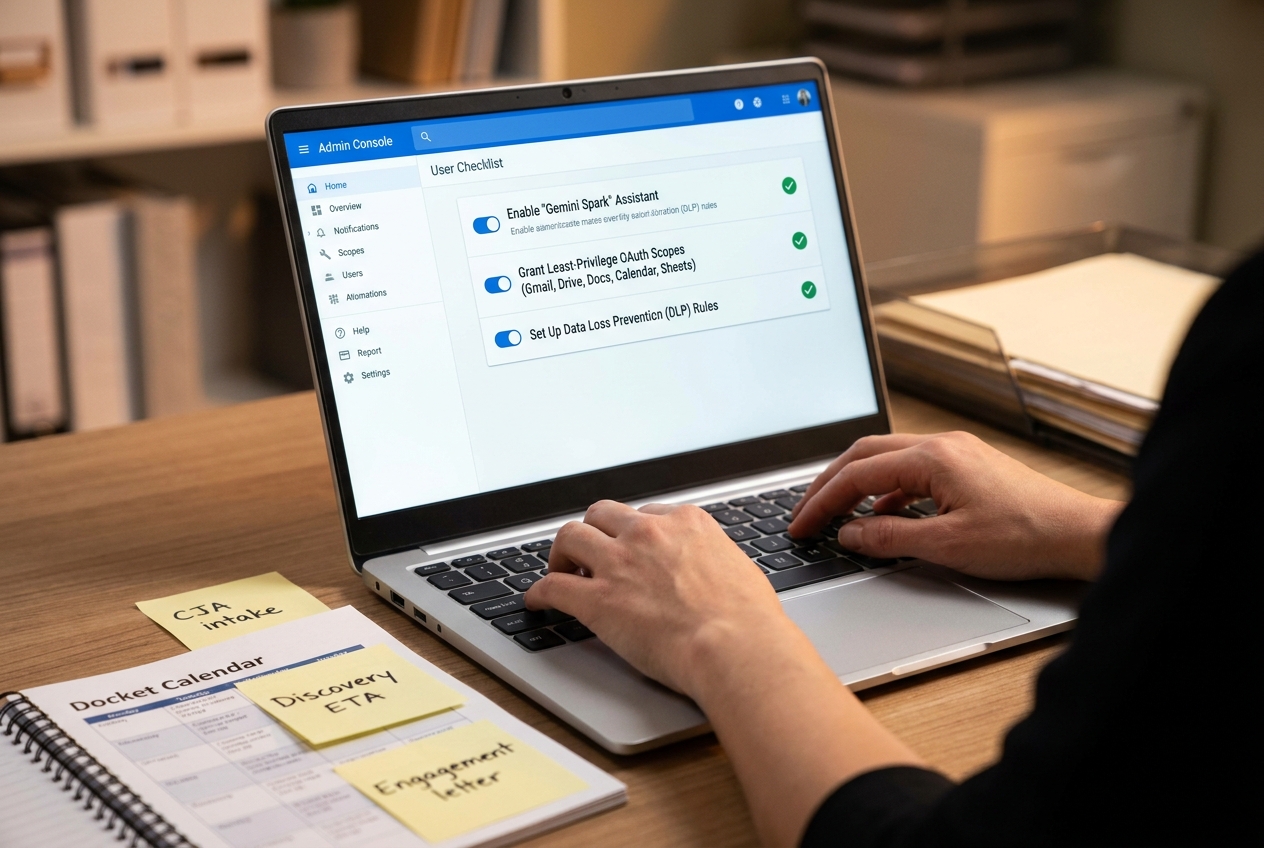
You’ll set up least-privilege access, shared drive structure, and basic data loss prevention (DLP) so “Gemini Spark” sees only what it needs.
Organize drives and permissions (20 minutes)
- Create a Shared Drive “Matters.” Inside, add folders by matter (e.g., “2026-005 Jones v. City”). Only assigned team members get access.
- Create a Shared Drive “Firm Ops” to store templates, your prompt library, and logs. Limit access to attorneys and operations.
- Set a Shared Drive naming convention and a “Templates” folder with locked, read-only templates.
Configure groups and access tiers (10 minutes)
- Create groups: “Legal-Staff,” “Partners,” “Ops,” and a dedicated “AI-Automations” group for service accounts/add-ons.
- Grant view-only to templates; edit access to matter teams; restrict external sharing by default.
Basic DLP and Vault (15–30 minutes)
- Turn on DLP rules that flag SSNs, bank numbers, and health identifiers in Drive and Gmail.
- Enable Google Vault retention aligned with your records policy; place pilot matters on hold if needed.
- Disable link-sharing to “Anyone with the link” for Matters drive.
Note: Least-privilege means your assistant can read only the pilot intake label in Gmail, the Templates folder in Ops, and each active pilot matter folder—nothing else. Start constrained and expand later.
Stage 3 — Turn On Gemini and Configure Your Private “Gemini Spark” Assistant
Enable Gemini features in your domain, then author a clear system prompt and policies so your assistant behaves predictably.
Enable Gemini and set boundaries (15 minutes)
- Ensure your firm has the required Gemini capabilities for Gmail, Docs, and Sheets features. Confirm they’re enabled for your pilot users in the Admin Console.
- Create a dedicated “Gemini Spark” configuration Doc stored in “Firm Ops > Prompts.” This file is the source of truth for instructions, tone, and prohibited actions.
- Draft your assistant’s system instructions. Example opening line: “You are ‘Gemini Spark,’ a privacy-first legal operations assistant for a small law firm. Summarize public or client-provided intake information, generate first drafts from templates, and propose schedules; never send external communications without human approval.”
Prepare reusable prompt blocks (20 minutes)
- Create blocks for: Intake Triage, Conflict Check Checklist, Engagement Letter Drafting, Discovery Summarization, Client Update Template, and Scheduling Script.
- Add redlines: “Do not interpret privileged strategy; do not speculate on legal outcomes; always cite source files/paths in outputs.”
- Store these as headings in the configuration Doc so they’re easy to reference and update.
Pro-Tip: Treat prompts like policy: version them with dates, include owners, and require partner sign-off before changes go live.
Stage 4 — Build Four Core Automations (Intake, Drafting, Discovery, Scheduling)
Below are four practical builds that deliver immediate value. Each uses standard Google Workspace tools plus Gemini’s assistance in Gmail/Docs/Sheets and can be implemented without custom server infrastructure.
4.1 Intake triage from Gmail to Sheets with draft replies
- Create a Gmail label “Intake/Pilot.” Route webform submissions or intake alias messages to this label with a filter.
- Open a new Google Sheet “Intake Tracker” in the “Firm Ops” drive. Columns: Date, Sender, Matter Type, Summary, Urgency, Conflicts? (Y/N), Next Action, Link to Draft, Reviewer.
- Use Gemini in Gmail to summarize each labeled email into a 3–4 sentence neutral summary. Paste into the Sheet, or use a simple Apps Script to pull the message body into Sheets and invoke Gemini in Sheets for a structured summary (Prompt: “Extract matter type, parties, key dates, jurisdiction, and urgency from this email. Return JSON with fields: matter_type, parties[], key_dates[], urgency (Low/Med/High), summary.”).
- In Sheets, create a data validation list for “Matter Type” and conditional formatting to flag High urgency.
- Have Gemini propose a draft response in Gmail acknowledging receipt, requesting any missing info, and offering available consultation slots (do not send automatically—save as draft).
- Assign a reviewer. The reviewer edits and sends the draft, or escalates if conflicts appear.
Note: For conflicts, keep it lightweight: a separate tab lists restricted names. Gemini can check for name matches and flag “Possible conflict” for human verification—no automatic denials.
4.2 Draft engagement letters in Docs from a locked template
- Store your approved Engagement Letter template in “Firm Ops > Templates.” Lock it read-only; staff generate copies via File > Make a copy to the matter folder.
- In the “Intake Tracker,” add columns for Fee Structure, Scope of Work, Jurisdiction, and Deadline to Retain.
- Open the template and use Gemini in Docs with a structured prompt: “Using the following intake fields [paste], produce a first draft of our standard engagement letter. Keep bracketed merge fields intact if data is missing. Do not alter fee or scope clauses beyond populating variables.”
- Gemini creates a first draft; the attorney reviews, redlines, and finalizes. Save to the matter folder.
- Send via Gmail for client review. If you use an eSignature vendor, insert your standard signature block and route accordingly.
Pro-Tip: Add a “Non-Negotiables” section at the top of the template (hidden comments). In your prompt, instruct Gemini never to modify those clauses. This cuts risky edits and speeds review.
4.3 Summarize discovery documents placed in the matter’s Drive
- In each pilot matter folder, create a subfolder “Discovery > Incoming.” Upload PDFs or text exhibits there.
- Open a “Discovery Summary” Doc in the matter folder. Ask Gemini in Docs: “Create a structured outline summarizing the contents of all files listed here [paste file names with Drive links]. Capture parties, dates, issues raised, and gaps. Provide citations: file name and page number if available.”
- For large uploads, do this in batches by issue (e.g., “HR emails,” “Incident reports”).
- Review the outline, add attorney notes, and assign follow-ups to staff with comments and @mentions.
Note: Keep privileged strategy in a separate “Attorney Notes (Privileged)” Doc. Prompts directed at Gemini should reference only the discovery materials or public records you select.
4.4 Offer and book onboarding calls via Google Calendar
- Set up appointment schedules in Google Calendar for initial consultations (e.g., “Attorney Smith—New Client Consult, 30 minutes”).
- When Gemini proposes draft replies to intake emails, include two or three appointment options with your booking page link. Example sentence: “You may select a time that works here: [booking link].”
- Upon confirmation, Calendar automatically creates a Meet link and invites participants. Add the “Client Onboarding Checklist” as a Docs link in the event description.
- In the “Intake Tracker,” update Next Action to “Consult Scheduled,” and have Gemini in Sheets generate a one-line status update for weekly client communications.
Stage 5 — Rollout, Training, and Governance-in-Use
A successful assistant is as much operations as it is technology. Roll out in a controlled pilot, train your team, and make review checkpoints explicit.
Pilot and change management (30–45 minutes)
- Select one practice area and three open matters as your pilot.
- Set a two-week sprint goal: reduce time-to-first-response to under 2 business hours; produce first-draft engagement letters within one business day; convert 75% of intakes to booked consultations.
- Define “human-in-the-loop” stops: All outbound drafts require attorney or designated reviewer approval.
- Establish a weekly 20-minute stand-up: review dashboard metrics, friction points, and requested prompt updates.
Training the team (60 minutes)
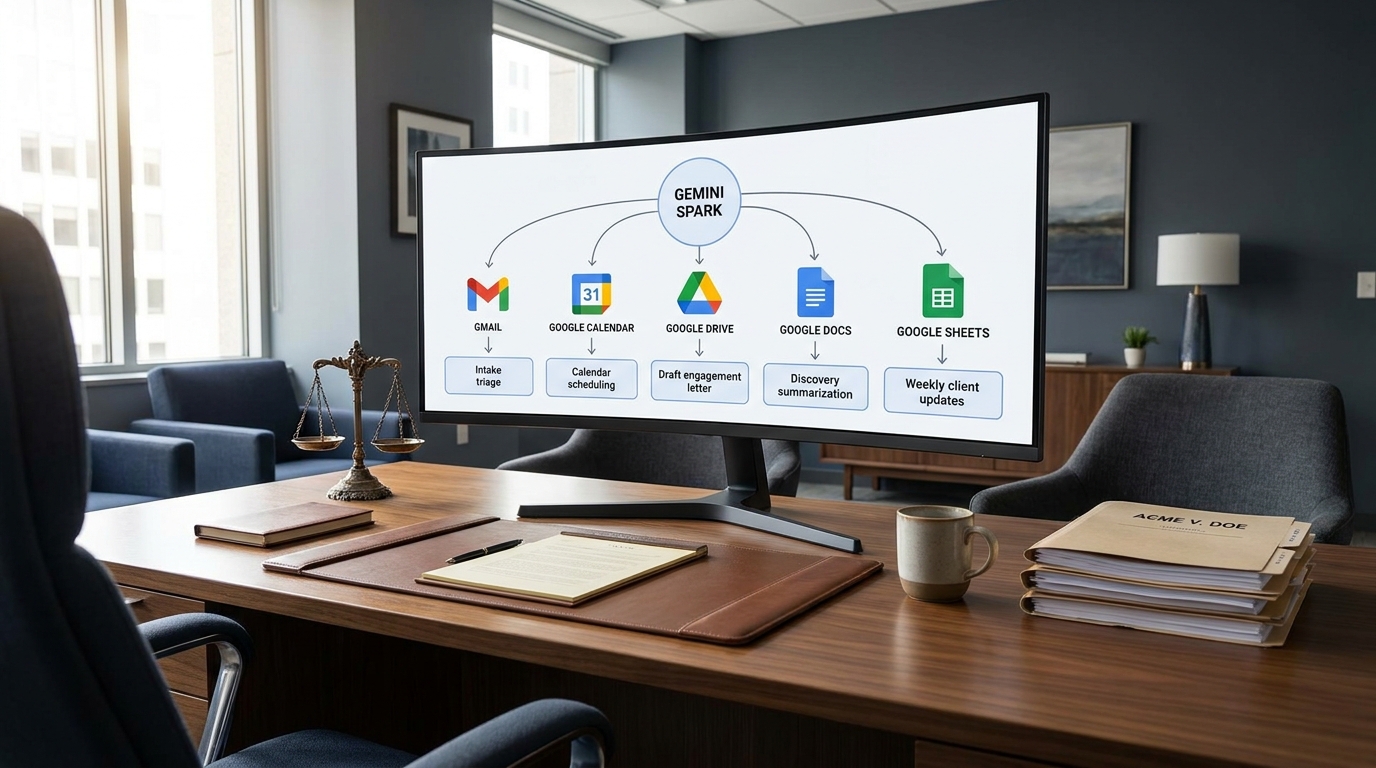
- Demonstrate the end-to-end flow: intake email lands in “Intake/Pilot” label → Gemini summary in Sheets → draft reply in Gmail → booking confirmation → engagement draft in Docs.
- Provide a one-page “Prompting Playbook” with examples tailored to your templates and tone.
- Teach reviewers how to spot AI artifacts: overconfident language, invented citations, and formatting drift. Encourage consistent redlining style.
- Reinforce data boundaries: what to include in prompts and what must be excluded or anonymized.
Pro-Tip: Add a comment macro to your templates: “AI Draft—Pending Attorney Review.” Remove the comment only after a lawyer signs off. This embeds governance into the document itself.
Stage 6 — Measure Impact and Iterate with a Lightweight Ops Dashboard
Quantify savings and quality improvements to justify expansion beyond the pilot. A simple Google Sheets + chart setup is enough for most small firms.
Define and capture KPIs (20 minutes)
- Time to first response (from intake email receipt to draft reply sent).
- Consult-to-engagement conversion rate.
- Average drafting time for engagement letters (start to attorney-approved version).
- Discovery turnaround (upload to first outline ready).
- Attorney review edits per draft (a proxy for draft quality and prompt quality).
Build a simple dashboard (20–30 minutes)
- In the “Intake Tracker,” add timestamps for key steps. Use formulas to compute durations (e.g., response_time_hours).
- Create a “Pilot Dashboard” Sheet with sparklines and bar charts: Response Time by Week, Conversion Rate, Drafting Duration, and Edits per Draft.
- Hold a weekly review: If a KPI misses its target, inspect the prompt block and update instructions or templates accordingly.
Note: Improvements come from tighter prompts and cleaner templates as much as from more automation. Don’t add complexity until you’ve optimized the core four workflows.
Troubleshooting Table
| Roadblock | Solution |
|---|---|
| Gemini can’t see the right Drive folders | Verify the user initiating the action has access to the matter folder; confirm the file is not in a “Restricted” location; ensure prompts reference explicit file links. |
| Draft replies aren’t saving in Gmail | Check that you’re using Gemini to compose inside Gmail and clicking “Save draft.” If automating with Apps Script, ensure the Gmail API scope is authorized and the label filter matches. |
| Engagement template formatting breaks | Lock your base template and generate copies per matter. Instruct Gemini to preserve headings, lists, and defined styles; avoid pasting raw HTML into Docs. |
| Discovery summaries miss key facts | Batch files by issue and include a bulleted list of questions for Gemini to answer. Require citations (file name and page). Add a human “audit pass” for critical filings. |
| Confidential data appears in prompts | Use your DLP rules to flag sensitive patterns. Add a pre-prompt checklist: “Remove SSNs, bank/medical info from pasted text unless absolutely necessary and approved.” |
| Too many false “conflict” flags | Switch to exact-match on last name + jurisdiction, and add a human confirmation step. Store prior clients/opposing parties in a standardized Sheet. |
| Team isn’t adopting the workflow | Run a live “lunch & learn,” show side-by-side before/after timings, and appoint a floor champion who can answer quick questions for two weeks. |
| Scheduling emails cause back-and-forth delays | Use Calendar appointment schedules and include the booking link in the first response. Offer two specific time windows as a fallback. |
| Outputs sound too “robotic” | Calibrate tone in your system prompt: “Concise, plain English; professional and empathetic; avoid legalese unless required.” Provide a sample paragraph to emulate. |
Success Checklist
- Workspace drives and permissions follow least-privilege; DLP rules active.
- “Gemini Spark” system prompt and prompt blocks stored in Firm Ops with versioning and partner approval.
- Gmail label “Intake/Pilot” routing confirmed; summaries reliably appear in the Intake Tracker.
- Draft engagement letters generated from the locked template and reviewed by an attorney before sending.
- Discovery summaries cite file names and pages; attorney notes kept in a separate privileged Doc.
- Appointment schedules live; draft replies include a booking link; events include Docs links to onboarding checklists.
- Dashboard tracks time-to-first-response, conversion rate, drafting duration, and edits per draft.
- Weekly stand-up in place; prompt library updated based on feedback.
Conclusion & Next Steps
By standing up “Gemini Spark” inside Google Workspace, your firm converts scattered, manual processes into a cohesive, auditable workflow. Intake gets triaged within minutes, engagement letters are drafted from approved templates, discovery turns into structured outlines, and onboarding calls book themselves—while your attorneys remain firmly in control. Start with one practice area, run a two-week pilot, and tune prompts and templates based on measured results. From there, scale to client update emails, simple document assembly, and matter status reporting. The same design principles—least-privilege access, explicit guardrails, human-in-the-loop review, and visible metrics—will keep your AI assistant safe, useful, and worth expanding.
Ready to explore how you can leverage technology and AI? Reach out to info@legalgpts.com today for expert guidance and tailored strategies.