

Step-by-Step: How to Use OpenAI’s Lockdown Mode to Secure Client and Case Data in Your Law Practice
Law firms handle high‑value data: privileged emails, draft agreements, PII/PHI, and work product. Generative AI can accelerate research, drafting, and client service—but it also introduces a new class of risks: prompt‑injection attempts that try to make the model leak or move sensitive data. OpenAI’s Lockdown Mode adds a hardened operating posture by limiting network‑enabled features and confining how the assistant can interact with tools and content. This guide shows small and boutique firms, attorneys, and operations leaders how to deploy Lockdown Mode quickly, integrate it with Microsoft 365, and verify it’s working—so your teams gain AI speed without compromising confidentiality. ([help.openai.com](https://help.openai.com/articles/20001061/?utm_source=openai))
Table of Contents
- 1) What Lockdown Mode Does—and When to Use It
- 2) Scope Lockdown by Matter Type, Practice Group, and Risk
- 3) Prepare Microsoft 365 and Your Data Controls
- 4) Enable Lockdown Mode in Your OpenAI Workspace
- 5) Configure Roles, Connectors, and Safe Defaults
- 6) Validate with Audit Logs and Red‑Team Tests
- Troubleshooting
- Success Checklist
- Conclusion & Next Steps
Prerequisites / What You’ll Need
- Admin access to your ChatGPT or OpenAI workspace (Org Admin or equivalent RBAC role).
- Eligible plan/workspace where Lockdown Mode is available; confirm current availability and rollout in the OpenAI Help Center: Lockdown Mode. ([help.openai.com](https://help.openai.com/articles/20001061/?utm_source=openai))
- Microsoft 365 tenancy with SharePoint/OneDrive configured and sensitivity labels (if used).
- Firm security policies for data classification (e.g., Client-Confidential, Highly Restricted, Public).
- Named pilot group (5–20 people) for initial rollout and feedback.
1) What Lockdown Mode Does—and When to Use It
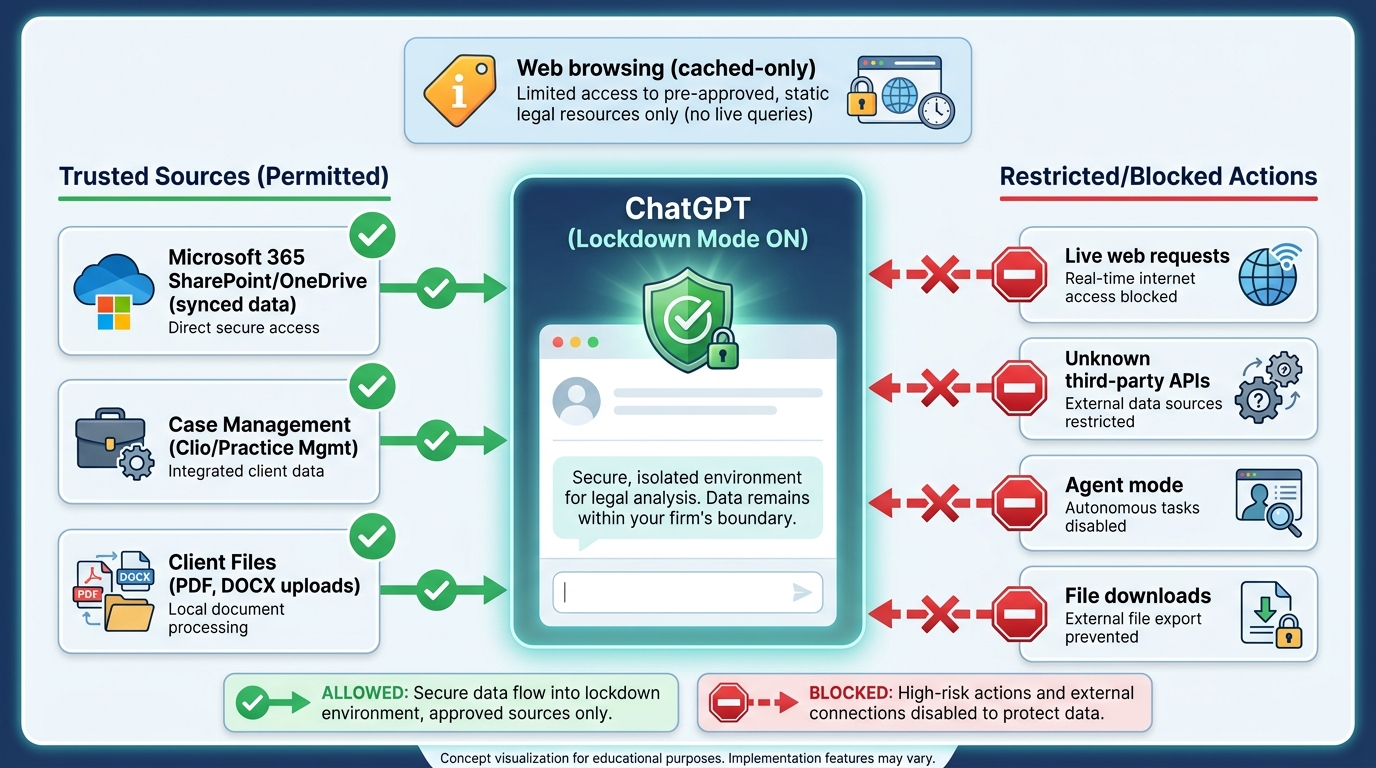
Lockdown Mode is an optional advanced security setting that restricts many network‑enabled tools and capabilities to reduce the risk of prompt‑injection‑based data exfiltration. Think of it as “least privilege” for AI: useful capabilities remain, while features that could send data outside OpenAI’s controlled environment are limited or disabled. Use it for attorneys and teams handling the most sensitive matters (e.g., healthcare litigation, M&A diligence, or cases with protective orders). ([help.openai.com](https://help.openai.com/articles/20001061/?utm_source=openai))
Key behavior to understand:
- Network‑enabled features such as live web search, deep research, agent mode, Canvas networking, and some app/MCP/connector behaviors may be limited or disabled when a user is in a Lockdown‑assigned role. ([help.openai.com](https://help.openai.com/en/articles/11750701-rbac?utm_source=openai))
- Web browsing, where allowed, is constrained to OpenAI’s indexed and cached content so no live external requests leave OpenAI’s controlled network. This reduces the attack surface for data exfiltration. ([openai.com](https://openai.com/nl-NL/index/introducing-lockdown-mode-and-elevated-risk-labels-in-chatgpt/?utm_source=openai))
- Read‑only “sync connectors” (e.g., OneDrive/SharePoint content synchronized into OpenAI) are considered lower‑risk because prompts do not trigger requests that leave OpenAI’s network; they can remain available depending on your workspace settings. ([help.openai.com](https://help.openai.com/pt-pt/articles/20001061-lockdown-mode?utm_source=openai))
Note: Lockdown Mode is designed to significantly reduce (not absolutely eliminate) exfiltration risk; it trades some convenience for deterministically stronger controls against known network‑dependent vectors. ([help.openai.com](https://help.openai.com/fr-ca/articles/20001061-lockdown-mode?utm_source=openai))
What you’ll accomplish in this section
- Decide whether Lockdown Mode is appropriate for your specific workflows.
- Align expectations with attorneys on what will change when Lockdown is active.
Pro‑Tip: Show users a side‑by‑side: a normal session vs. a Lockdown session. It prevents surprises and reduces “it’s broken” tickets.
2) Scope Lockdown by Matter Type, Practice Group, and Risk
Instead of turning Lockdown on for everyone, assign it where the risk warrants it. OpenAI’s role‑based access control (RBAC) lets you place specific members into a Lockdown‑governed role so that restrictive rules apply only to them. This is ideal for litigation teams working with protective orders, healthcare practices handling PHI, or due‑diligence teams ingesting confidential data rooms. ([help.openai.com](https://help.openai.com/en/articles/11750701-rbac?utm_source=openai))
Design a practical scoping model
- Define tiers:
- Tier 1 (Lockdown Required): Healthcare litigation, government investigations, ITAR/Export‑controlled matters.
- Tier 2 (Lockdown Recommended): M&A diligence, IP strategy, employment investigations.
- Tier 3 (Standard Controls): Marketing, recruiting, generic legal research with public sources.
- Map groups to roles: Create Lockdown‑specific roles for “Litigation—Lockdown,” “Healthcare—Lockdown,” etc., and assign members accordingly. ([help.openai.com](https://help.openai.com/en/articles/11750701-rbac?utm_source=openai))
- Document exceptions: If a Tier 1 user temporarily needs an unrestricted session (e.g., testing a new app), route this through Security/IT approvals.
Pro‑Tip: Align Lockdown scoping to your matter‑intake process. If a matter is flagged “Highly Restricted,” its working group is auto‑enrolled into a Lockdown role.
3) Prepare Microsoft 365 and Your Data Controls
Most boutique firms already center their data on Microsoft 365. Preparing that environment ensures Lockdown Mode complements—rather than collides with—your information governance.
Configure Microsoft 365 for a Lockdown‑aware AI workflow
- Inventory sources: List the SharePoint sites, OneDrive libraries, and Teams channels that contain client‑confidential documents and should be searchable in AI.
- Apply sensitivity labels: Use Microsoft Purview labels (e.g., “Client‑Confidential,” “Highly Restricted”) and DLP policies to restrict download/sharing where appropriate.
- Prefer read‑only sync connectors: When connecting OpenAI to Microsoft 365, favor synchronized, read‑only access to reduce network calls and exposure. This aligns with Lockdown’s assumption that synced data stays within OpenAI’s controlled network. ([help.openai.com](https://help.openai.com/pt-pt/articles/20001061-lockdown-mode?utm_source=openai))
- Minimize write actions: Disable AI-initiated writebacks (e.g., creating or deleting files) for Lockdown roles. Keep human‑in‑the‑loop for any change that affects client data.
- Tag high‑risk workspaces: Create Microsoft 365 groups for matters that must always run in Lockdown and map these to OpenAI roles.
Plan user experience and help content
- Explain that in Lockdown, some features are intentionally unavailable (e.g., live browsing, certain app actions), and that web content may appear from cached indexes rather than the live internet. ([openai.com](https://openai.com/nl-NL/index/introducing-lockdown-mode-and-elevated-risk-labels-in-chatgpt/?utm_source=openai))
- Publish “How to ask” examples for legal tasks that still work beautifully in Lockdown: summarizing discovery, extracting entities from PDFs, drafting clauses from a firm playbook, or generating interview outlines for client onboarding.
4) Enable Lockdown Mode in Your OpenAI Workspace
The exact labels and screens can evolve, but the activation pattern is consistent: create or choose a role, enable Lockdown controls, and assign members. The effect is that when those members use the assistant, network‑enabled capabilities are constrained per Lockdown policy. ([help.openai.com](https://help.openai.com/en/articles/11750701-rbac?utm_source=openai))
Enable Lockdown in a pilot
- Open the Admin console: Sign in to your OpenAI workspace as an Org Admin.
- Create a role: Add a new role “Litigation—Lockdown.”
- Toggle Lockdown Mode: In the role’s security or advanced controls, enable Lockdown Mode and review which apps/capabilities are limited for that role (e.g., live web search, agent mode, deep research, some connector actions). ([help.openai.com](https://help.openai.com/en/articles/11750701-rbac?utm_source=openai))
- Assign members/groups: Add your pilot users or a Microsoft 365 group synchronized for that practice team.
- Communicate the change: Notify users about what will look different and how to request a temporary exception if needed.
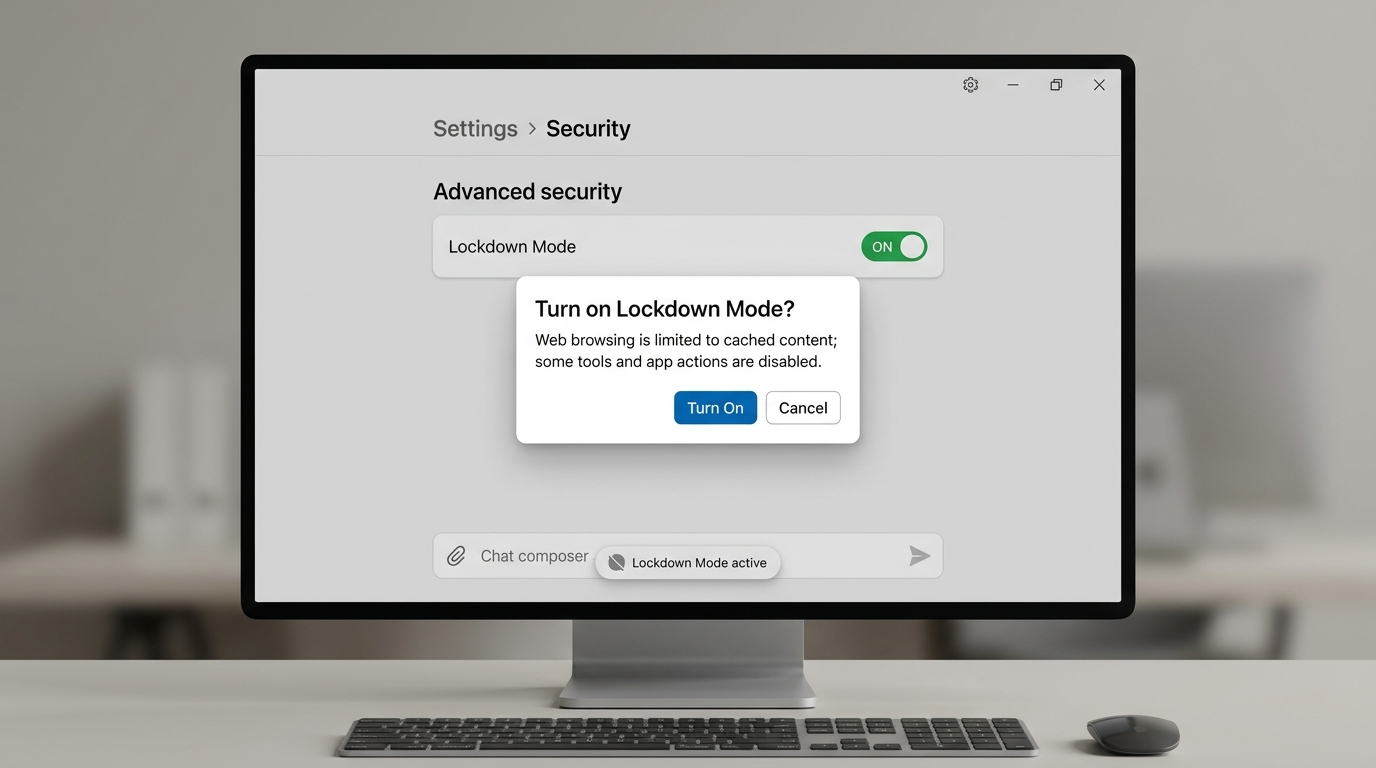
Note: Depending on workspace settings, Lockdown can be applied at user/role scope; confirm your current options in the OpenAI Help Center article on RBAC and the Lockdown Mode overview. ([help.openai.com](https://help.openai.com/en/articles/11750701-rbac?utm_source=openai))
5) Configure Roles, Connectors, and Safe Defaults
With Lockdown enabled for your pilot role, refine how data sources and tools behave for those users. The goal is a “secure-by-default” configuration that still delivers real productivity.
Role policy—recommended baseline for boutique firms
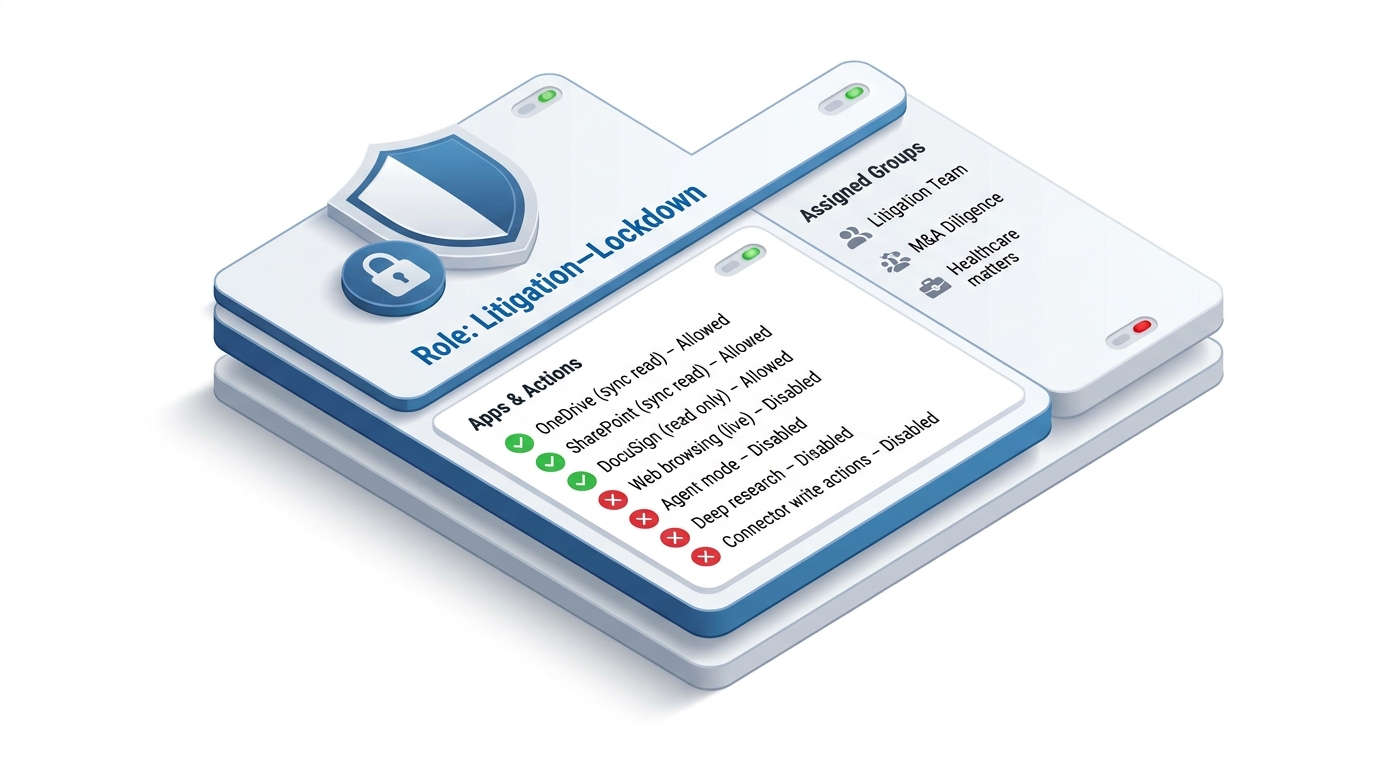
- Browsing: Disable live web search. If browsing is needed, ensure it uses cached/indexed content only. ([openai.com](https://openai.com/nl-NL/index/introducing-lockdown-mode-and-elevated-risk-labels-in-chatgpt/?utm_source=openai))
- Agent mode / deep research / autonomous actions: Disable for Lockdown roles. ([help.openai.com](https://help.openai.com/en/articles/11750701-rbac?utm_source=openai))
- Apps and MCP/Connectors:
- Allow Microsoft 365 read‑only sync connectors (OneDrive/SharePoint) so the model can reference discovery sets, prior work product, and client files without initiating external network calls. ([help.openai.com](https://help.openai.com/pt-pt/articles/20001061-lockdown-mode?utm_source=openai))
- Block write‑capable connectors (e.g., posting to third‑party SaaS, sending emails) for Lockdown roles unless strictly required and approved.
- File handling: Permit uploads (PDF/DOCX) from local or synced sources; block AI‑initiated downloads to unmanaged locations.
- Session indicators: Make sure Lockdown status is clearly visible in the chat/composer so users know controls are active.
Matter-centric connector strategy
- Create per‑matter sources: For large litigations or deals, create a dedicated SharePoint site and sync it to the assistant for the Lockdown role.
- Limit scope: Only sync the libraries and folders that the team needs within the next 90 days.
- Label consistently: Use sensitivity labels and folder conventions so attorneys can trust the assistant’s retrieval context.
- Protect write paths: For any connector that supports write actions, set policy: “Lockdown roles = read‑only.”
Draft policy language for your handbook
“For designated Lockdown roles, OpenAI assistants operate with network‑restricted capabilities. Live web requests, autonomous agent actions, and write‑enabled connectors are disabled. Only synchronized, read‑only data sources approved by IT/Security are available to the model.” Adapt this to match the exact features your workspace exposes. ([help.openai.com](https://help.openai.com/en/articles/11750701-rbac?utm_source=openai))
6) Validate with Audit Logs and Red‑Team Tests
Don’t stop at configuration. Prove controls work, document evidence for clients, and keep a runbook for incident response.
Functional validation—what to test
- Lockdown indicator: Start a session as a Lockdown user and confirm the visible status/indicator.
- Browsing behavior: Ask the assistant to visit a live news page; verify it declines or uses cached results only—no live outbound requests. ([openai.com](https://openai.com/nl-NL/index/introducing-lockdown-mode-and-elevated-risk-labels-in-chatgpt/?utm_source=openai))
- Connector boundaries: Request a write action (e.g., “create a file in SharePoint”) and confirm it’s blocked for Lockdown roles.
- Prompt‑injection attempt: Paste a web snippet or file content that includes hidden instructions to exfiltrate data; confirm the model refuses and logs reflect the block.
Audit and compliance evidence
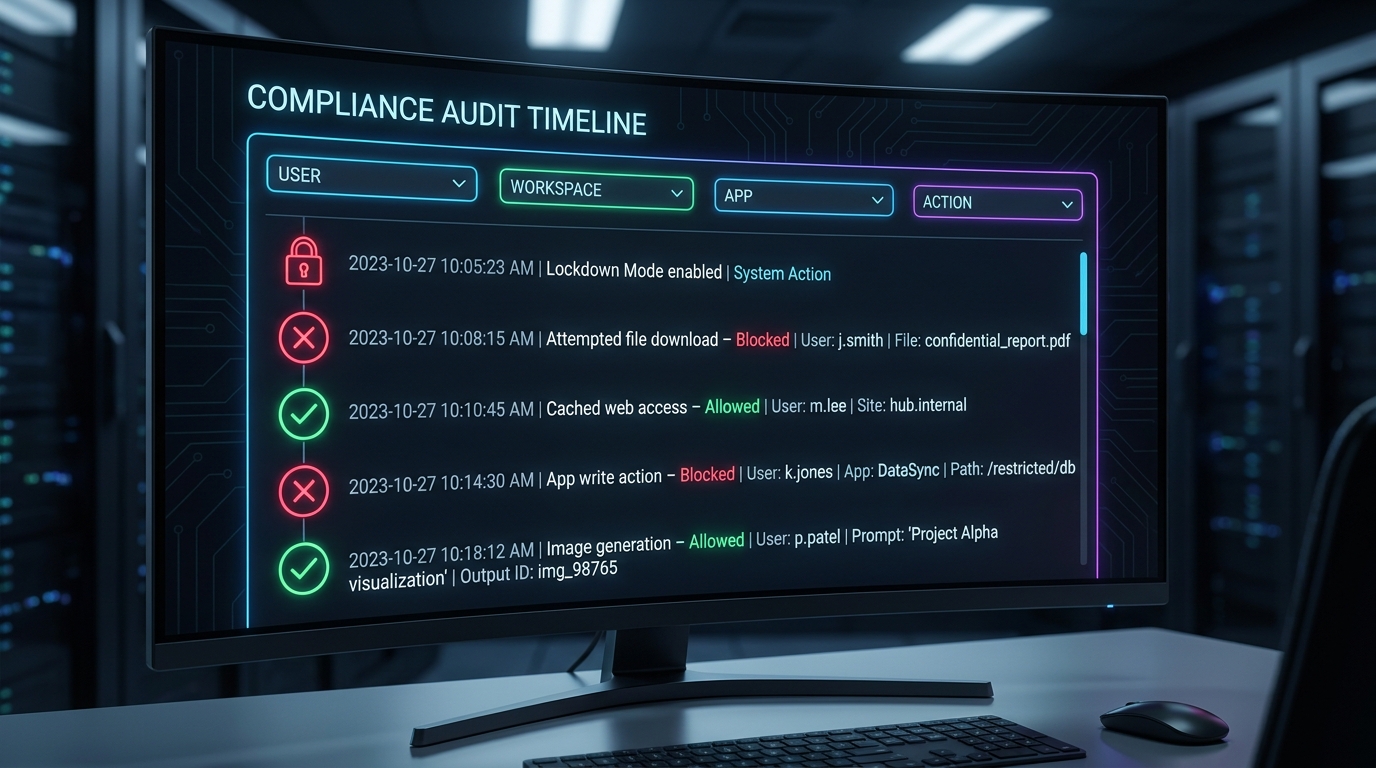
Use your workspace’s compliance and audit logging to capture “Lockdown Mode enabled,” blocked actions (e.g., file downloads, app writebacks), and allowed operations (e.g., cached web access). If available, export or query Compliance API Logs to demonstrate oversight across apps, shared data, and connected sources as your AI usage scales. ([help.openai.com](https://help.openai.com/cs-cz/articles/20001061-lockdown-mode?utm_source=openai))
Client‑facing assurance
- Attach a one‑page “AI Controls Summary” to engagement letters for regulated clients (health systems, financial institutions).
- Reference OpenAI’s published security posture documents and your firm’s DLP/M365 controls as corroborating materials, plus a brief description of Lockdown Mode and its trade‑offs. ([cdn.openai.com](https://cdn.openai.com/osa/security-measures.pdf?utm_source=openai))
Troubleshooting
| Roadblock | Solution |
|---|---|
| “The assistant won’t open live websites.” | Expected in Lockdown. Browsing is limited or relies on cached content to avoid live external requests. Switch to a non‑Lockdown role if a live pull is truly required and approved. ([openai.com](https://openai.com/nl-NL/index/introducing-lockdown-mode-and-elevated-risk-labels-in-chatgpt/?utm_source=openai)) |
| “It refuses to run my research agent.” | Agent mode and deep research are commonly disabled for Lockdown roles. Use manual prompts or request a temporary exception. ([help.openai.com](https://help.openai.com/en/articles/11750701-rbac?utm_source=openai)) |
| “The app can read OneDrive files but can’t save new ones.” | Maintain read‑only sync connectors for Lockdown roles. If a writeback is necessary, document the business case and enable narrowly with time‑boxed approval. ([help.openai.com](https://help.openai.com/pt-pt/articles/20001061-lockdown-mode?utm_source=openai)) |
| “Users think something is broken.” | Publish a quickstart showing the Lockdown indicator, examples of tasks that still work, and how to request exceptions. Training reduces false tickets and speeds adoption. |
| “I need proof for auditors/clients.” | Export Compliance API Logs or workspace audit logs showing Lockdown activation and blocked actions. Maintain a control test record quarterly. ([help.openai.com](https://help.openai.com/cs-cz/articles/20001061-lockdown-mode?utm_source=openai)) |
Success Checklist
- At‑risk practice groups (e.g., Litigation—Healthcare, Investigations) assigned to Lockdown‑governed roles. ([help.openai.com](https://help.openai.com/en/articles/11750701-rbac?utm_source=openai))
- Live web, agent mode, and deep research disabled for Lockdown roles; status indicator visible to end users. ([help.openai.com](https://help.openai.com/en/articles/11750701-rbac?utm_source=openai))
- Microsoft 365 sources connected via read‑only sync; writebacks blocked or tightly controlled. ([help.openai.com](https://help.openai.com/pt-pt/articles/20001061-lockdown-mode?utm_source=openai))
- Users can retrieve documents from synced matter libraries and summarize, extract, and draft within Lockdown constraints.
- Audit/Compliance logs show “Lockdown Mode enabled” events and attempted risky actions as “Blocked.” ([help.openai.com](https://help.openai.com/cs-cz/articles/20001061-lockdown-mode?utm_source=openai))
- Help content explains Lockdown trade‑offs and provides exception request flow.
Conclusion & Next Steps
Lockdown Mode gives law firms a pragmatic way to apply “least‑privilege AI” for the most sensitive work. By scoping it to high‑risk matters, connecting only read‑only, synchronized sources, and disabling network‑dependent features like live browsing or agent mode, you sharply reduce exfiltration pathways while preserving everyday drafting, summarization, and analysis. Finish by operationalizing: document policy, train attorneys on Lockdown‑friendly prompts, and schedule quarterly control tests with audit exports. As OpenAI continues to evolve Lockdown and related enterprise controls, revisit your RBAC design and connector posture to balance capability with confidentiality for every matter. ([help.openai.com](https://help.openai.com/articles/20001061/?utm_source=openai))
Ready to explore how you can leverage technology and AI? Reach out to info@legalgpts.com today for expert guidance and tailored strategies.