

How to Protect Your Small Law Firm from 2026’s Worst Data-Breach Patterns: A Step‑by‑Step Microsoft 365 and AI Defense Playbook
In 2026 so far, the biggest breaches share familiar patterns: credential theft, business email compromise (BEC), supply‑chain misuse of OAuth tokens, and double‑extortion ransomware. For small and boutique law firms, a single lapse can trigger ethics issues, client churn, regulatory exposure, and costly incident response. This tutorial shows you exactly how to harden a Microsoft 365–centric environment using Zero Trust controls, intelligent email and endpoint defenses, and disciplined governance. Follow the steps to reduce breach likelihood, contain blast radius when something slips through, and prove diligence to clients and insurers—all while keeping your attorneys productive in discovery, client onboarding, and case collaboration.
Table of Contents
- Prerequisites / What You’ll Need
- Stage 1 — Triage Your Risk Against 2026 Breach Patterns
- Stage 2 — Lock Down Identity with Entra ID and Strong MFA
- Stage 3 — Shield Email, Teams, and Endpoints with Defender + Intune
- Stage 4 — Protect Client and Matter Data with Microsoft Purview
- Stage 5 — Build Ransomware Resilience and Fast Recovery
- Stage 6 — Incident Response, Automation, and Human Defense
- Troubleshooting Table
- Success Checklist
- Conclusion & Next Steps
Prerequisites / What You’ll Need
- Microsoft 365 Business Premium or Microsoft 365 E3/E5 (Defender, Intune, and Purview features are referenced).
- Global Admin and Security Admin roles (consider using Privileged Identity Management).
- Access to portals: Microsoft 365 Admin Center, Microsoft Entra admin center, Microsoft 365 Defender portal, Intune admin center, and Microsoft Purview.
- At least two FIDO2 security keys or platform passkeys for pilot users (attorney partner + operations manager).
- Defined client/matter taxonomy (e.g., Client–Matter ID) and a short list of “crown‑jewel” data locations.
- A designated incident response owner and 24/7 escalation path (internal or MSP).
Stage 1 — Triage Your Risk Against 2026 Breach Patterns
Map real incidents to your workflows
Don’t start with tools—start with how your firm actually works. The most damaging 2026 breaches typically involve:
- Credential theft and session hijacking from AI‑assisted phishing and OAuth app consent abuse.
- Business Email Compromise (BEC) targeting trust accounts, wire instructions, and settlement disbursements.
- Ransomware with data exfiltration from synced cloud drives and unmanaged endpoints.
- Vendor or eDiscovery platform token misuse (supply‑chain compromise).
- List your sensitive workflows: client intake, conflicts checks, discovery collections, negotiations, and court filings.
- For each workflow, mark access methods (mobile, remote, external sharing), involved systems (Outlook, Teams, SharePoint/OneDrive, case management, eDiscovery), and people roles.
- Highlight crown‑jewel data stores: trust account spreadsheets, settlement docs, medical records, trade secrets, and attorney notes.
- Choose one KPI for each: phishing click rate, time to isolate an endpoint, DMARC enforcement status, and RTO/RPO for OneDrive/SharePoint.
Pro‑Tip: Create a one‑page “Risk‑to‑Control” matrix. For example, Risk: BEC of managing partner’s mailbox → Control: FIDO2 MFA + block external auto‑forwarding + payment policy requiring out‑of‑band voice confirmation.
Stage 2 — Lock Down Identity with Entra ID and Strong MFA
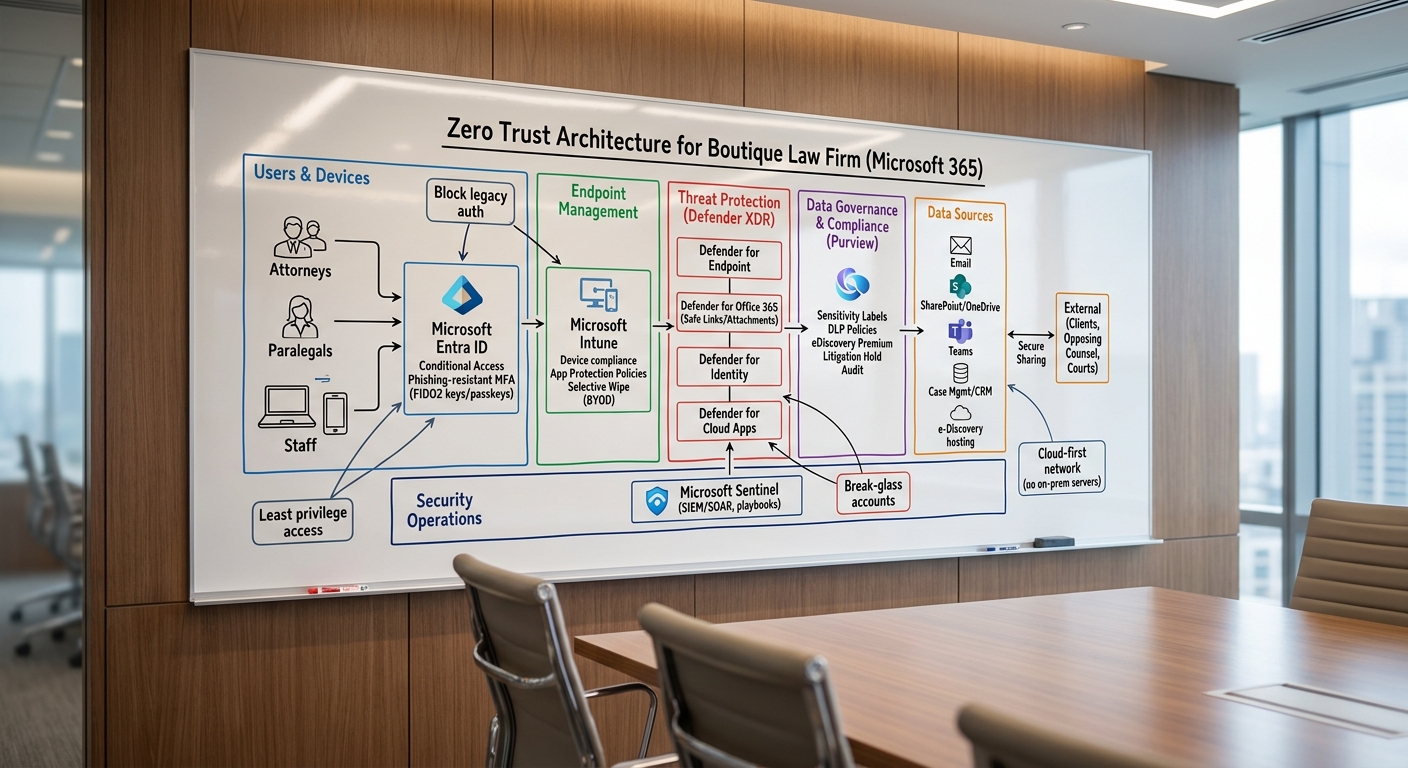
Implement Zero Trust access in Microsoft Entra ID
- Enable phishing‑resistant MFA:
- Roll out Passkeys or FIDO2 security keys for partners, finance, and admins first; then all staff.
- Keep SMS/voice only as emergency backup; prefer Microsoft Authenticator with number matching + device binding.
- Conditional Access (CA) baseline:
- Require MFA for all users; block legacy authentication (POP/IMAP/SMTP AUTH, Basic auth).
- Require compliant or protected device for access to Exchange, SharePoint, and Teams.
- Block risky sign‑ins; require password change on high user risk; use report‑only mode first, then enforce.
- Privileged Identity Management (PIM):
- Make Global Admin and Exchange Admin eligible, not permanent; require approval + MFA + time‑bound just‑in‑time activation.
- Create at least two “break‑glass” cloud‑only accounts with long passphrases and no CA policies; store offline securely.
- App governance:
- Restrict user consent to verified publishers; require admin approval for high‑risk OAuth permissions.
- Review enterprise applications quarterly; remove stale app registrations and rotate secrets/certificates.
Note: If you’re short on time, enable Security Defaults for an instant uplift, then migrate to tailored Conditional Access policies over two weeks.
Stage 3 — Shield Email, Teams, and Endpoints with Defender + Intune
Stop phishing, malware, and session theft before they become breaches
- Defender for Office 365:
- Turn on Safe Links (rewrite + click‑time analysis) and Safe Attachments (Dynamic Delivery for minimal delay).
- Set anti‑phish policies with user impersonation protection for partners and finance; add “first‑contact safety tips.”
- Disable external auto‑forwarding; quarantine high‑confidence phish; enable ZAP (zero‑hour auto purge).
- Email authentication and BEC defenses:
- Publish SPF and DKIM for your domains; enforce DMARC at p=quarantine then p=reject after monitoring.
- Implement MTA‑STS and TLS‑RPT; add external sender tagging and attachment type blocks (.iso, .js, .scr).
- Adopt a two‑person verification workflow for wire/escrow changes; store the call‑back number from engagement letters, not the email signature.
- Defender for Endpoint (Windows/macOS/iOS/Android):
- Onboard all firm devices; enable web content filtering, network protection, and attack surface reduction (ASR) rules.
- Block Office from creating child processes; block credential stealing from LSASS; enable tamper protection.
- Configure automated investigation and remediation; set isolation policies for high‑severity alerts.
- Intune device compliance and App Protection:
- Create compliance policies requiring BitLocker/FileVault, secure boot, and up‑to‑date OS; mark non‑compliant if jailbroken/rooted.
- For BYOD, use App Protection Policies for Outlook/Teams: require PIN/biometrics, encrypt app data, block copy/paste to unmanaged apps, and allow selective wipe.
- Use Conditional Access: “Require compliant device OR approved app with App Protection” for Exchange, SharePoint, and Teams.
- Teams and meeting hygiene:
- Limit external participants to lobby by default; restrict screen sharing to organizers and presenters.
- For hearings/mediations, create “sensitive” channels with private membership and label‑based access.
Pro‑Tip: Set an Automation Rule in Microsoft 365 Defender to auto‑isolate devices when a ransomware behavior alert triggers and to open a ticket in your PSA/MSP tool.
Stage 4 — Protect Client and Matter Data with Microsoft Purview
Govern labels, sharing, and retention to keep confidential data where it belongs
- Create a simple label taxonomy:
- “Public,” “Internal,” “Client‑Confidential,” and “Highly Confidential – Legal Hold.”
- Map “Client‑Confidential” to encryption + content marking; restrict external sharing unless explicitly allowed.
- Auto‑labeling and DLP:
- Build trainable classifiers for matter numbers and common PII/PHI terms.
- Use DLP to prevent copy/paste/upload of “Highly Confidential” to personal OneDrive/Dropbox and block email to non‑approved domains.
- Enable Endpoint DLP to catch sensitive data leaving via USB or print.
- Secure collaboration in SharePoint/OneDrive:
- Create a “Client‑External” site template that only allows sharing with specific guest domains and requires MFA for guests.
- Disable anyone links; require view‑only for court filings folders; enable file‑level expiration for shared links.
- eDiscovery and Legal Hold:
- Use Purview eDiscovery (Standard/Premium) to place custodians on hold quickly (attorneys, paralegals) without disrupting daily work.
- Record holds and audit actions to satisfy chain‑of‑custody requirements in discovery.
- Records and retention:
- Apply retention labels to matters (e.g., 7 years post‑closure) with disposition review by the responsible partner.
- Set mailbox and Teams retention that balances ethics rules with practical storage costs.
Note: Keep the initial taxonomy tight. Labels no one understands become “stickers,” not security. Train with 10 real documents per label and iterate monthly.
Stage 5 — Build Ransomware Resilience and Fast Recovery
Design for “assume breach” and bounce back in hours, not days
- Backups that survive attackers:
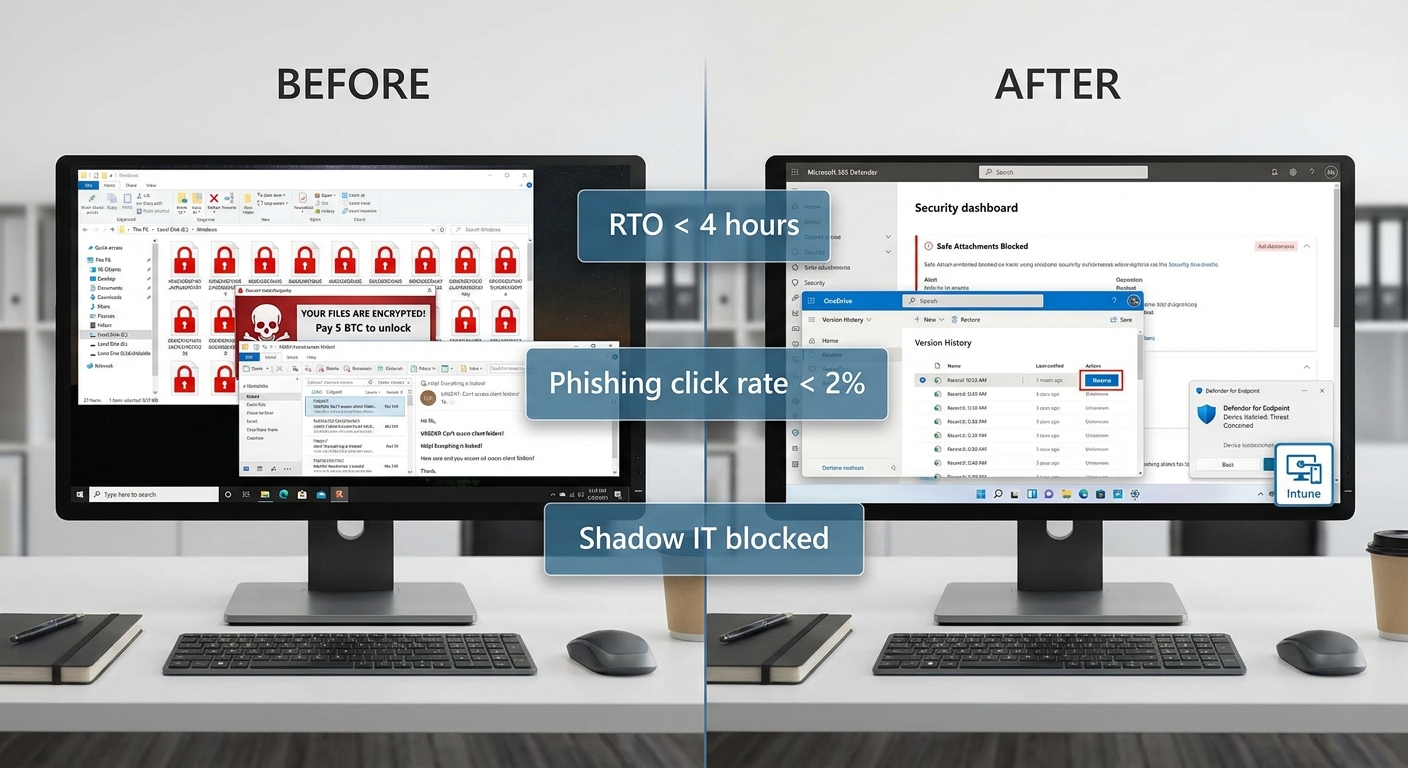
- Enable OneDrive and SharePoint versioning and recycle bin; add a third‑party immutable backup for Microsoft 365 with separate credentials and MFA.
- Back up critical app data (case management, billing, trust accounting) with vendor‑supported, immutable storage and tested restores.
- Define recovery objectives:
- Set RTO (how fast to restore) targets: e.g., < 4 hours for active matters, next business day for archives.
- Set RPO (how much data you can lose): e.g., 1 hour for live drafting spaces, 24 hours for scanned archives.
- Practice the drill:
- Quarterly tabletop with a ransomware scenario: isolate a partner’s laptop in Defender, restore the “Active Matters” library from backup, and reissue fresh credentials.
- Document timing, gaps, and action owners. Update your runbook and CA exceptions immediately after the test.
- Containment patterns:
- Create a “Ransomware Containment” tag in Defender to auto‑isolate, revoke refresh tokens, and block external sharing for impacted accounts.
- Scripted revocation of OAuth consents granted during the incident; rotate secrets on any app registrations.
Pro‑Tip: Keep a small “clean room” Microsoft 365 tenant or a pristine admin workstation image for forensics and secure communication while you contain the primary tenant.
Stage 6 — Incident Response, Automation, and Human Defense
Codify who does what in the first 60 minutes—and automate the rest
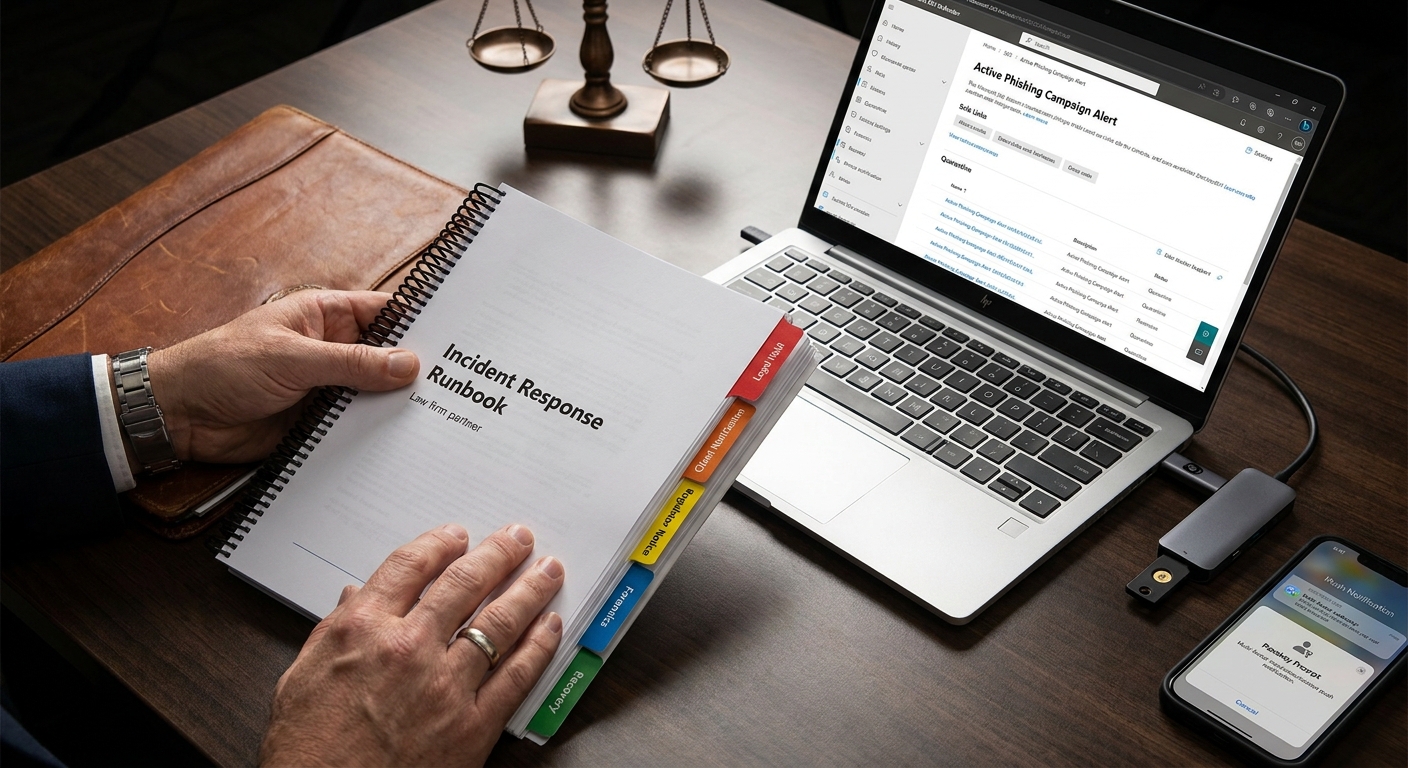
- Build a one‑page IR runbook:
- First 15 minutes: confirm scope, isolate endpoints, revoke sessions, open an IR case in Microsoft 365 Defender, and notify the incident lead.
- Next 45 minutes: triage alerts, preserve evidence (unified audit log, mailbox items, device forensics), and decide on client notification triggers.
- Include legal hold, insurer contact, regulator timelines, and approved client communications templates.
- Automate with Defender and Sentinel:
- Enable automatic investigation and remediation for malware/phish and device containment.
- In Microsoft Sentinel (or your SIEM), create playbooks that on high‑severity alerts will: post to SecOps channel, create a ticket, disable risky tokens, and require re‑auth on next sign‑in.
- Training that matches 2026 attack reality:
- Run monthly phishing simulations focused on settlement/wire fraud and document‑share phish. Track click rate; target < 2% by Q4.
- Teach deepfake‑resistant verification: no payment changes without a known call‑back number and verbal passphrase agreed in the engagement letter.
- Deliver 10‑minute micro‑lessons: “How to spot malicious OAuth apps,” “How to verify a Teams meeting invite,” and “What to do if your laptop behaves oddly.”
- Vendor and app oversight:
- Collect SOC 2 or ISO 27001 evidence and incident‑notification terms from eDiscovery, court‑filing, and case‑management vendors.
- Rotate API tokens quarterly; scope access to least privilege; review audit logs for unusual volume or off‑hours access.
Troubleshooting Table
| Roadblock | Likely Cause | Solution |
|---|---|---|
| Users locked out after enabling Conditional Access | Policy applied to all accounts including break‑glass and service accounts | Exclude two break‑glass accounts from CA; test in report‑only first; stage rollouts by group. |
| MFA fatigue push approvals | Over‑reliance on push notifications | Move to FIDO2/passkeys; enable number matching and geo‑location in Authenticator; limit allowed MFA methods. |
| Legitimate client emails quarantined | Strict anti‑phish and DLP rules | Create allow lists for verified client domains; use User‑Reported Phish triage; tune DLP exceptions by label and matter. |
| Intune enrollment fails on iOS | Apple MDM push certificate expired | Renew the Apple MDM certificate with the original Apple ID; set renewal reminders 30 days before expiry. |
| Shadow IT file sharing persists | No frictionless alternative | Create a “Client‑External” SharePoint template with easy guest access + MFA; block consumer storage via Endpoint DLP. |
| Defender for Endpoint missing alerts | Devices not onboarded or tamper protection disabled | Onboard via Intune; verify sensor health; enforce tamper protection and ASR rules. |
| DMARC at p=none for months | Fear of blocking legit mail | Analyze aggregate reports; fix sources; move to p=quarantine for 2 weeks, then p=reject with exceptions documented. |
| Sentinel costs spiking | Ingesting noisy logs without filtering | Use basic logs and ingestion caps where appropriate; enable data retention policies; write suppression rules for benign events. |
Success Checklist
- All partners and finance staff are on FIDO2/passkeys; SMS/voice is backup only.
- Legacy protocols (POP/IMAP/SMTP AUTH, Basic auth) fully blocked; Conditional Access in enforce mode with exclusions for two break‑glass accounts.
- Defender for Office 365 Safe Links and Safe Attachments enabled; external auto‑forwarding disabled; impersonation protection active.
- SPF/DKIM/DMARC configured with DMARC at p=reject; MTA‑STS and TLS‑RPT implemented.
- All endpoints onboarded to Defender; ASR rules and tamper protection on; devices isolate automatically on ransomware behavior.
- Intune enforces device compliance; BYOD protected by App Protection Policies with selective wipe.
- Purview sensitivity labels applied to client/matter data; DLP blocks exfiltration to personal apps and unknown domains.
- SharePoint/OneDrive external sharing uses “specific people” links with expiration and MFA for guests.
- Purview eDiscovery and Legal Hold ready; retention policies mapped to matter lifecycle.
- Immutable M365 backups in place; quarterly restore tests show RTO < 4 hours for active matters.
- IR runbook printed and digital; automation closes tokens and isolates devices within minutes.
- Monthly phishing simulations show click rate < 2%; wire‑change verification policy enforced.
- Quarterly review of OAuth apps and vendor risk completed and documented.
Conclusion & Next Steps
Breaches in 2026 prove that attackers move fast and exploit small gaps—unprotected identities, unmanaged devices, weak email hygiene, and over‑permissive data sharing. By implementing the six stages in this guide, your firm makes credential theft harder, blocks BEC and malware earlier, limits lateral movement, and recovers quickly if ransomware strikes. Start with identity and email, then layer data governance and practiced recovery. Within 30–60 days, you can demonstrate measurable controls to clients, insurers, and auditors, and reduce real risk without slowing attorneys down. Next, expand automation, deepen vendor oversight, and periodically retest your response to keep pace with evolving threats.
Ready to explore how you can leverage technology and AI? Reach out to info@legalgpts.com today for expert guidance and tailored strategies.