

Step-by-Step: Activate Phone Security Modes to Shield Your Law Firm from Spyware
Spyware quietly siphons client data, matter strategy, and privileged communications—often via a single compromised phone. For small and boutique law firms, the risk is amplified by bring‑your‑own‑device (BYOD) practices, frequent travel, and sensitive work like discovery, client onboarding, and negotiations. This tutorial shows firm leaders, operations managers, and attorneys exactly how to enable “phone security modes,” harden iPhone and Android devices against spyware, and enforce protections with Microsoft Intune and mobile threat defense. Follow these steps to reduce breach exposure, meet client security expectations, and keep your practice moving even during a suspected compromise.
Table of Contents
- Prerequisites / What You’ll Need
- Stage 1 — Prepare: Policy, Inventory, and Risk Scoping
- Stage 2 — iPhone Hardening: Lockdown Mode and Core Protections
- Stage 3 — Android Hardening: Advanced Protections and App Controls
- Stage 4 — Enforce with Microsoft Intune and Defender for Endpoint
- Stage 5 — High‑Risk Situations: Temporary “Travel/Incident” Security Modes
- Stage 6 — Monitor, Train, and Validate
- Troubleshooting Roadblocks
- Success Checklist
- Conclusion & Next Steps
Prerequisites / What You’ll Need
- Administrative approval to set and enforce a mobile device policy (BYOD or firm‑owned).
- Microsoft 365 Business Premium, Microsoft Intune, and (recommended) Microsoft Defender for Endpoint licenses.
- Access to your firm’s Apple IDs or Google accounts for device owners (to enable security features).
- Time window to update devices to the latest OS versions and re‑enroll them into MDM if needed.
- Documented incident‑response contacts (internal IT, outside counsel, cyber insurer) in case of suspected spyware.
Stage 1 — Prepare: Policy, Inventory, and Risk Scoping
Before flipping device switches, set ground rules so protections stick. You’ll codify who can use what, where data can go, and the minimum “security mode” every phone must meet to access client information.
1.1 Define your mobile security policy (fast, practical version)
- Decide device model coverage: “Last two major OS versions only” (e.g., current iOS/Android and one back).
- Require device unlock protections: strong passcode/PIN + biometrics; auto‑lock at ≤ 2 minutes.
- Mandate updates: automatic OS and app updates enabled; security patches applied within 7 days.
- Prohibit risky sources: no side‑loading/unknown sources; block developer options and USB debugging.
- Lock down communications: enable built‑in anti‑phishing/anti‑malware scanning; limit high‑risk links.
- Backups: encrypted cloud backups allowed; local unencrypted backups prohibited.
- Monitoring: devices must enroll in Intune; non‑compliant = no access to M365 or client data.
1.2 Inventory devices and prioritize
- Export a list of users accessing email, Teams, or SharePoint from mobile. Note platform (iOS/Android).
- Tag high‑risk roles (partners handling M&A, litigators working discovery, traveling counsel).
- Sequence rollout: firm‑owned devices first, then BYOD; high‑risk roles first each wave.
Pro‑Tip: Make “security mode” activation a condition of receiving case materials. Your DLP and conditional access policies can enforce this automatically once Intune enrollment is required.
Stage 2 — iPhone Hardening: Lockdown Mode and Core Protections
Apple’s Lockdown Mode reduces the attack surface against targeted spyware by aggressively limiting risky features. Combine it with strong passcodes, automatic updates, and sensitive account protections. Menu names can vary slightly by version; the flow below works on current iOS releases.
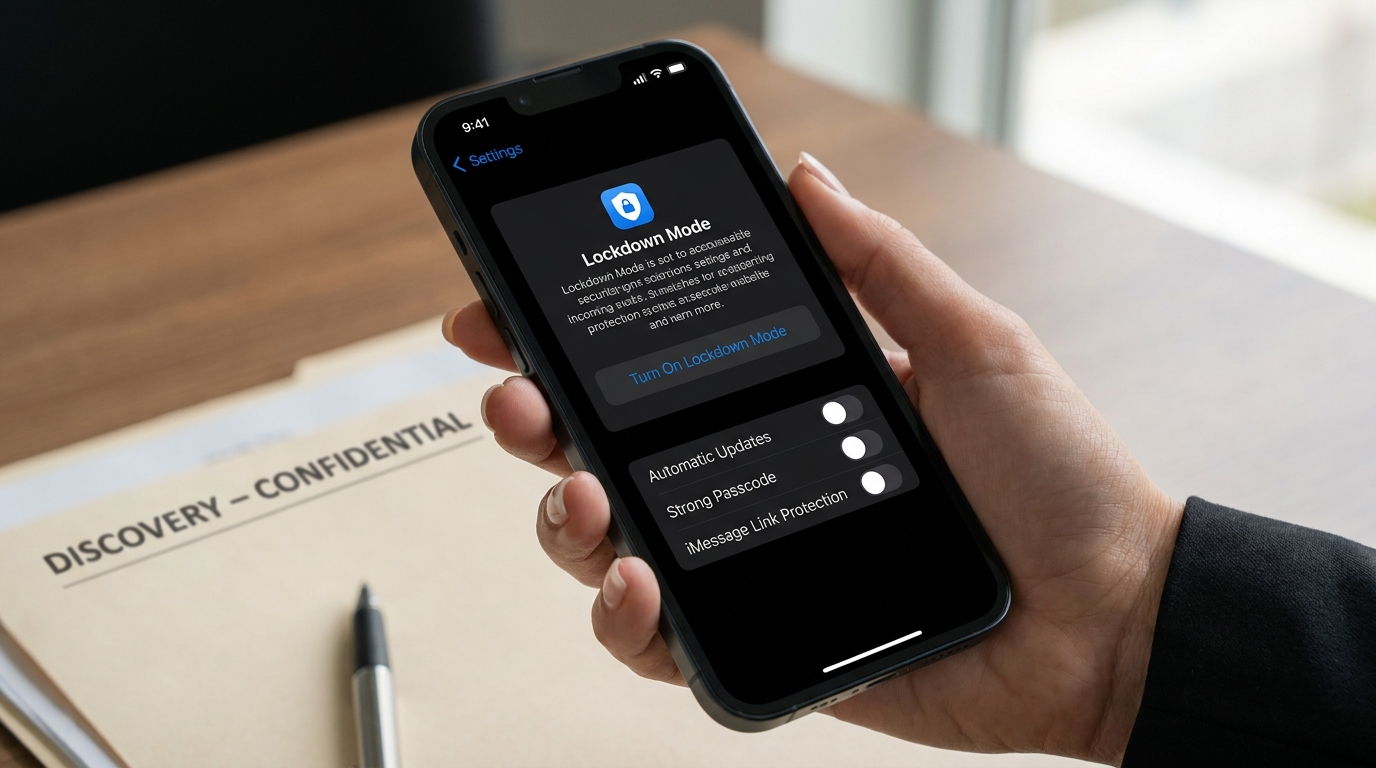
2.1 Turn on iOS Lockdown Mode (for high‑risk roles or during incidents)
- Open Settings > Privacy & Security > Lockdown Mode.
- Tap “Turn On Lockdown Mode,” read the summary, then confirm and restart if prompted.
- After restart, review the “Allowlist” prompts to permit only essential apps/sites (if needed for court portals or e‑billing).
Note: Lockdown Mode will restrict link previews, some message attachments, and certain web technologies. Train affected users (e.g., litigators) so they know what to expect during trial travel.
2.2 Require a strong device passcode and quick auto‑lock
- Settings > Face ID/Touch ID & Passcode > Change Passcode > Passcode Options > choose “Custom Alphanumeric” or long numeric (at least 8 digits).
- Set Auto‑Lock to 30 seconds–2 minutes; disable “USB Accessories” when locked to block tethered attacks.
2.3 Enable automatic updates and app protections
- Settings > General > Software Update > Automatic Updates > enable “Download iOS Updates” and “Install iOS Updates.”
- App Store > App Updates > enable automatic updates and “Offload Unused Apps” to reduce dormant risk.
2.4 Harden iMessage, FaceTime, and Safari
- Settings > Messages: disable “Message Filtering from Unknown Senders” only if your intake workflow requires it; otherwise leave enabled and avoid tapping links from unknowns.
- Consider enabling iMessage Contact Key Verification for sensitive matters to detect MITM on identity keys.
- Settings > Safari: enable “Fraudulent Website Warning,” turn on cross‑site tracking prevention, and consider disabling JavaScript for ultra‑high‑risk travel periods if workflows allow.
2.5 Protect the Apple ID and iCloud data
- Settings > [Your Name] > Password & Security: enforce two‑factor authentication; consider physical security keys for partners and traveling counsel.
- If available to your region/tenant, enable Advanced Data Protection for iCloud to expand end‑to‑end encryption coverage. Store recovery methods securely.
- Review which apps sync to iCloud; turn off any that don’t require cloud storage for client work.
2.6 MDM enrollment (iOS) quick wins
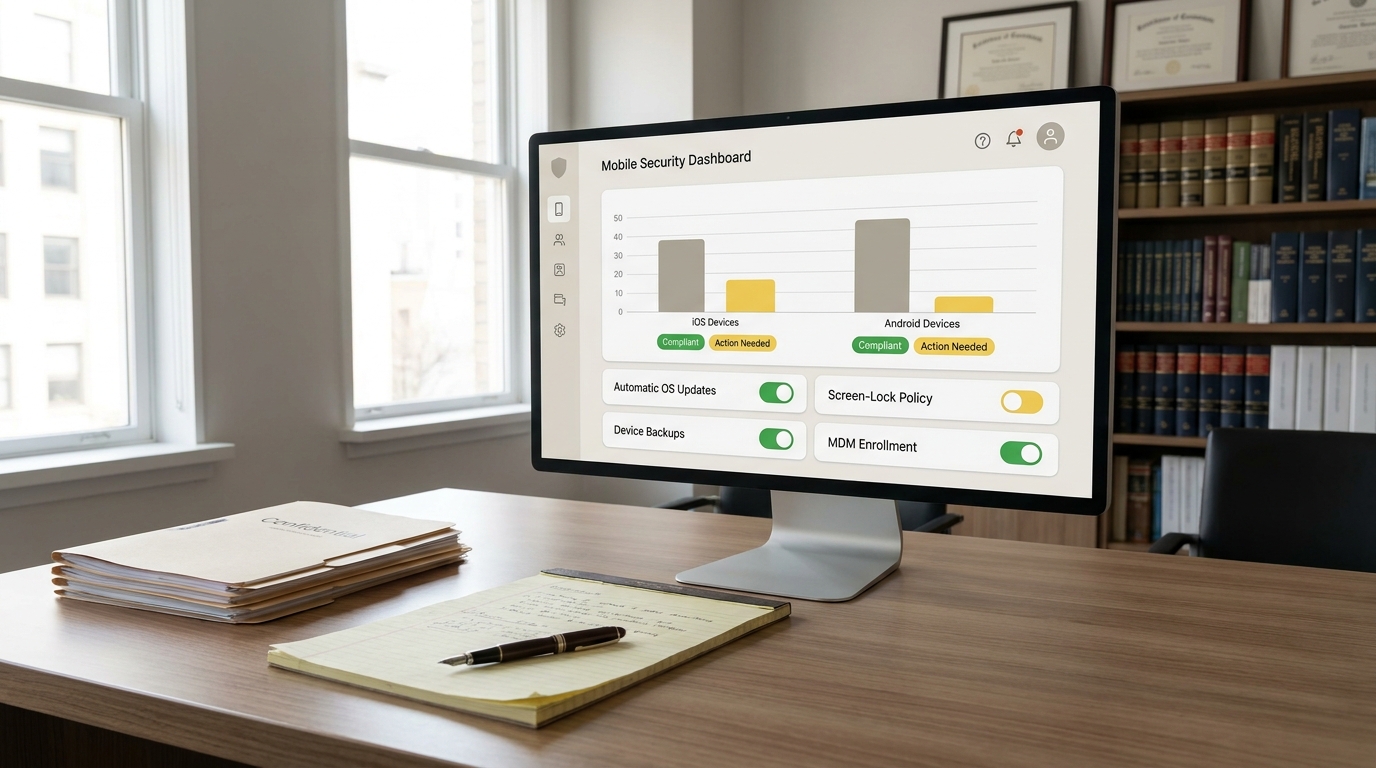
- Enroll into Intune. Apply a device configuration profile that enforces: strong passcode, auto‑update, disable profile installation from outside MDM, block unmanaged configuration profiles, and require encrypted backup.
- Block unapproved VPN/proxy profiles. If your firm uses an approved VPN, push that profile via Intune.
Pro‑Tip: Create two iOS compliance levels: “Standard” for most staff and “Lockdown Required” for high‑exposure roles. Conditional Access can automatically demand the stricter posture before opening Teams, Outlook, or OneDrive.
Stage 3 — Android Hardening: Advanced Protections and App Controls
Android offers robust security when properly configured: verified updates, app vetting, and controls that stop side‑loading and accessibility‑abuse (a common spyware tactic). Names vary slightly by device vendor; start with these platform‑level protections.
3.1 Update the OS and Google Play system
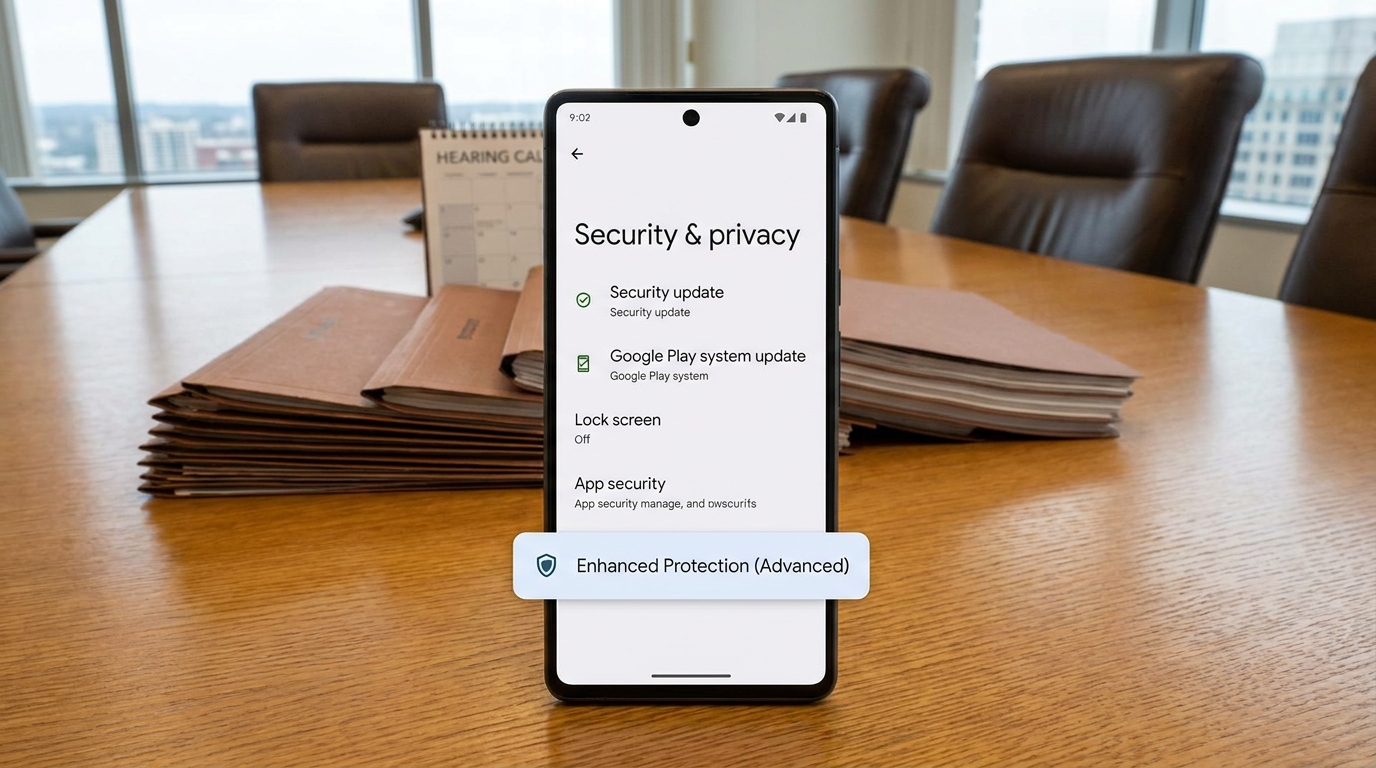
- Settings > Security & privacy > Security update: apply available updates.
- Settings > Security & privacy > Google Play system update: apply any pending updates and restart.
3.2 Turn on Google Play Protect and app scanning
- Settings > Security & privacy > App security > Google Play Protect: enable “Scan apps” and run a manual scan.
- Enable “Warn about harmful apps/sites” (wording varies) in Chrome or your default browser for phishing protection.
3.3 Disable side‑loading and developer features
- Settings > Apps > Special app access > Install unknown apps: ensure all apps show “Not allowed.”
- Settings > System > Developer options: ensure “Developer options” are off; if on, disable “USB debugging.”
3.4 Lock screen, biometrics, and quick auto‑lock
- Settings > Security & privacy > Device lock: set a strong PIN or passphrase (avoid 4‑digit PINs) and enable biometric unlock.
- Set screen timeout to ≤ 2 minutes and require PIN/password on boot.
3.5 Review Accessibility and Device Admin abuse
- Settings > Accessibility > Installed services: turn off any unfamiliar service (spyware often hides here).
- Settings > Security & privacy > Device admin apps: remove admin rights from unknown or unnecessary apps.
3.6 Strengthen the Google Account
- Enable two‑factor authentication (preferably security keys) for the Google account on the device.
- For users at higher risk (journalist‑like threat models, high‑profile litigation), enroll those Google accounts in an advanced phishing/hijacking protection program if available.
3.7 MDM enrollment (Android) quick wins
- Enroll the device into Intune (Android Enterprise). Use “Work Profile” for BYOD; “Fully Managed” for firm‑owned.
- Compliance policy: require device PIN strength, block unknown sources, block USB file transfer when locked, require Play Protect on, require up‑to‑date OS.
- Configuration profile: disable installation from unknown sources at the OS level; restrict screen capture for sensitive apps if your workflows allow.
Pro‑Tip: On Samsung devices, pair Intune with built‑in enterprise features (e.g., Knox policies) to enforce hardware‑backed protections and Work Profile separation between personal and firm data.
Stage 4 — Enforce with Microsoft Intune and Defender for Endpoint
Relying on voluntary settings is fragile. Enforce your phone security modes using Intune compliance and configuration, and verify runtime protection with Microsoft Defender for Endpoint (MDE). The result: non‑compliant phones simply can’t open Outlook, Teams, or SharePoint until fixed.
4.1 Build baseline compliance policies
- Create separate policies for iOS/iPadOS and Android Enterprise.
- Minimum OS versions: set to the current version minus one to preserve older devices while blocking risky ages.
- Require device lock with strong PIN/passcode, encryption, and automatic updates enabled.
- Mark device non‑compliant if malware is detected (via MDE) or if Play Protect / Lockdown‑equivalent settings are disabled.
4.2 Apply configuration profiles to “harden by default”
- iOS: disable unmanaged profile installation; block USB accessories when locked; restrict unapproved VPN/proxy; enforce Safari safe browsing features.
- Android (Work Profile/Fully Managed): block unknown sources; disable developer options; restrict USB file transfer; require Play Store only; set Private DNS (DoT/DoH) to a firm‑approved resolver.
- Deploy update rings (Android) and schedule nightly update checks (iOS) to reduce patch lag.
4.3 Conditional Access: gatekeep client data
- Require “Compliant device” to access Exchange Online, Teams, SharePoint/OneDrive.
- Block legacy/basic auth and require MFA with phishing‑resistant methods (e.g., Authenticator number match or security keys).
- Create a “High‑Risk Matter” group that requires stricter device posture (e.g., iOS Lockdown required; Android unknown sources blocked; MDE risk score Low only).
4.4 Defender for Endpoint on mobile
- Deploy MDE to all enrolled devices. Enable app scanning, network protection, and anti‑phishing where supported.
- Set automated remediation: quarantine malicious apps, raise device risk, and trigger Conditional Access blocks instantly.
- Create alerts for spyware‑like behaviors (e.g., suspicious accessibility service, SMS interception, side‑loading attempts).
Pro‑Tip: Tie Intune’s “Non‑compliant” state to a Service Desk ticket and an automated Company Portal message that explains the exact steps users must take to regain access in under five minutes.
Stage 5 — High‑Risk Situations: Temporary “Travel/Incident” Security Modes
When exposure spikes—international travel, contentious negotiations, or a suspicious text—activate a temporary, stricter mode. Communicate this as a simple, named protocol so users take it seriously and know how to exit afterward.
5.1 “Travel Mode” (planned high risk)
- iPhone: Turn on Lockdown Mode (Stage 2.1). Limit iCloud app syncing to essentials. Use only firm‑approved VPN. Avoid installing new apps.
- Android: Ensure unknown sources are blocked, Play Protect is on, and developer options are off. Use Work Profile for all client apps. Restrict notifications on lock screen.
- M365: Move the user into the “High‑Risk Matter” Conditional Access group for the trip timeframe.
5.2 “Incident Mode” (suspected compromise)
- Immediately revoke client data access via Conditional Access for the affected device/user.
- Trigger MDE scan and collect triage artifacts (only if this is safe and won’t tip the attacker).
- Backup critical data (cloud, encrypted), then factory‑reset the device. Re‑enroll in Intune and restore only essential apps from vetted sources.
- Require password resets and review token/session revocation for M365 and other SaaS.
Note: For matters involving protective orders or sensitive witnesses, keep Lockdown/Travel Mode in place for the entire engagement. Build it into your matter plan and client communications.
Stage 6 — Monitor, Train, and Validate
Phone security modes work only if users understand the “why,” IT validates the posture, and the firm reviews telemetry. Build a lightweight but consistent rhythm.
6.1 Monthly checks (15 minutes)
- Run an Intune compliance report. Remediate any outdated OS versions or disabled protections.
- Review MDE alerts for spyware indicators (accessibility/service abuse, SMS redirection, malicious profiles).
- Spot‑check a sample of devices across practice groups (e.g., litigation, family law, healthcare/PII).
6.2 Quarterly tabletop (30–45 minutes)
- Simulate a suspicious text with a malicious link sent to a partner while traveling.
- Walk through “Incident Mode”: access revocation, mobile scan, device reset, post‑incident reporting.
- Update your policy and Intune baselines based on lessons learned.
6.3 Targeted training
- Teach attorneys how Lockdown Mode and Android protections change day‑to‑day behavior (attachments, link previews, notifications).
- Reinforce why to avoid side‑loading even for “trusted” vendor apps—always use the official app store or an MDM‑delivered app.
- Include a 60‑second screen in your client onboarding playbook: “How our firm protects your data on mobile.”
Troubleshooting Roadblocks
| Roadblock | What It Looks Like | Solution |
|---|---|---|
| Users resist Lockdown Mode due to workflow friction | Complaints about message previews or blocked attachments during travel | Create two Intune groups: “Standard” and “Travel/Incident.” Train on temporary use and provide a 1‑page “what changes” guide. |
| Android side‑loading re‑enabled by user | Unknown sources set to “Allowed” after a troubleshooting attempt | Enforce via Intune configuration; remove local admin-like controls; use MDE to alert on non‑store installs and auto‑quarantine. |
| Out‑of‑date OS versions | Devices stuck two or more releases behind | Block access with Conditional Access until updated; create update rings/schedules; offer loaner phones during long updates. |
| BYOD privacy concerns | Staff fear IT can read personal messages or photos | Use Android Work Profile and iOS User Enrollment where available; clearly explain corporate vs. personal data separation in training. |
| Unknown “Accessibility Service” active | Screen reading/overlay service the user didn’t install | Disable the service, run a full malware scan (MDE/Play Protect), and reset if persistence is suspected; re‑enroll device. |
| MDM enrollment fails | Company Portal loops or profile won’t install | Remove old MDM profiles, clear browser cache, reboot, ensure correct time/date, then retry enrollment with the latest Company Portal app. |
| Encrypted backup not enabled | Backups missing or using local unencrypted methods | Mandate cloud backups via policy; block iTunes/ADB local backups; provide guidance to verify encryption status in settings. |
| Partner won’t give up 4‑digit PIN | Short PIN and no auto‑lock | Set minimum PIN length in Intune; educate on shoulder‑surfing risks; require biometrics and 2‑minute auto‑lock. |
Success Checklist
- All active devices inventoried and enrolled in Intune.
- iPhones for high‑risk roles have Lockdown Mode enabled when traveling or for sensitive matters.
- Android devices have Play Protect on, unknown sources blocked, and developer options off.
- Automatic OS and app updates enabled on every device.
- Strong passcodes/PINs and biometrics required; auto‑lock set to ≤ 2 minutes; USB accessories blocked when locked.
- Conditional Access requires compliant devices to open Outlook, Teams, and SharePoint.
- Defender for Endpoint deployed, alerting on spyware behaviors, with automated remediation.
- Encrypted cloud backups enabled; local unencrypted backups disabled by policy.
- Travel/Incident Mode protocol documented, tested, and communicated to all staff.
- Monthly posture review and quarterly tabletop exercise completed.
Conclusion & Next Steps
With the steps above, your phones shift from “soft targets” to hardened, policy‑enforced endpoints. Attorneys can still review discovery, meet clients, and file on the go—while Lockdown/Travel Mode and Android protections cut spyware risk dramatically. Keep momentum by standardizing Intune compliance, automating Conditional Access, and building a five‑minute user refresher into new‑matter kickoffs. As your firm grows, extend the same controls to tablets, implement data loss prevention for mobile, and integrate high‑risk alerts into your incident‑response playbook. A few hours of setup today can save weeks of remediation and, most importantly, protect client trust.
Ready to explore how you can leverage technology and AI? Reach out to info@legalgpts.com today for expert guidance and tailored strategies.